
Set up user sync with Active Directory (AD LDAP / OpenLDAP)
A guide for the UnSpot administrator and the directory administrator: how to connect employee synchronization from a local Active Directory or OpenLDAP, which fields to transfer and how to narrow the result. You connect it in Manage > Integrations, in the User synchronization block. The roles that may configure integrations are Super Administrator and Integrations Administrator. How the exchange itself works and what leaves the directory is covered in the companion article User sync with Active Directory (AD LDAP / OpenLDAP): how it works — that is also the one to hand to your information security team.
What you need
- An UnSpot role: Super Administrator or Integrations Administrator.
- Network access: the domain controller must accept inbound connections from the UnSpot addresses (request the current list from UnSpot support) on port 389 or 636, depending on the protocol you choose. Without that access the form will not save: the settings are only written once the integration check has passed (step 7).
- A directory service account with read-only access to user, group and department objects.
- The DN of the container to search employees from.
- A free synchronization slot: only one method can be connected at a time — AD LDAP, OpenLDAP, Entra ID or Google Workspace. If another one is connected, disconnect it first.
Step 1. Connection settings
Open Manage > Integrations. The User synchronization block lists every method: AD LDAP, OpenLDAP, Entra ID (Azure AD), Google Workspace and SCIM 2.0 have a Connect button, while CSV and OpenID Connect open their own sections through a Go to settings link.
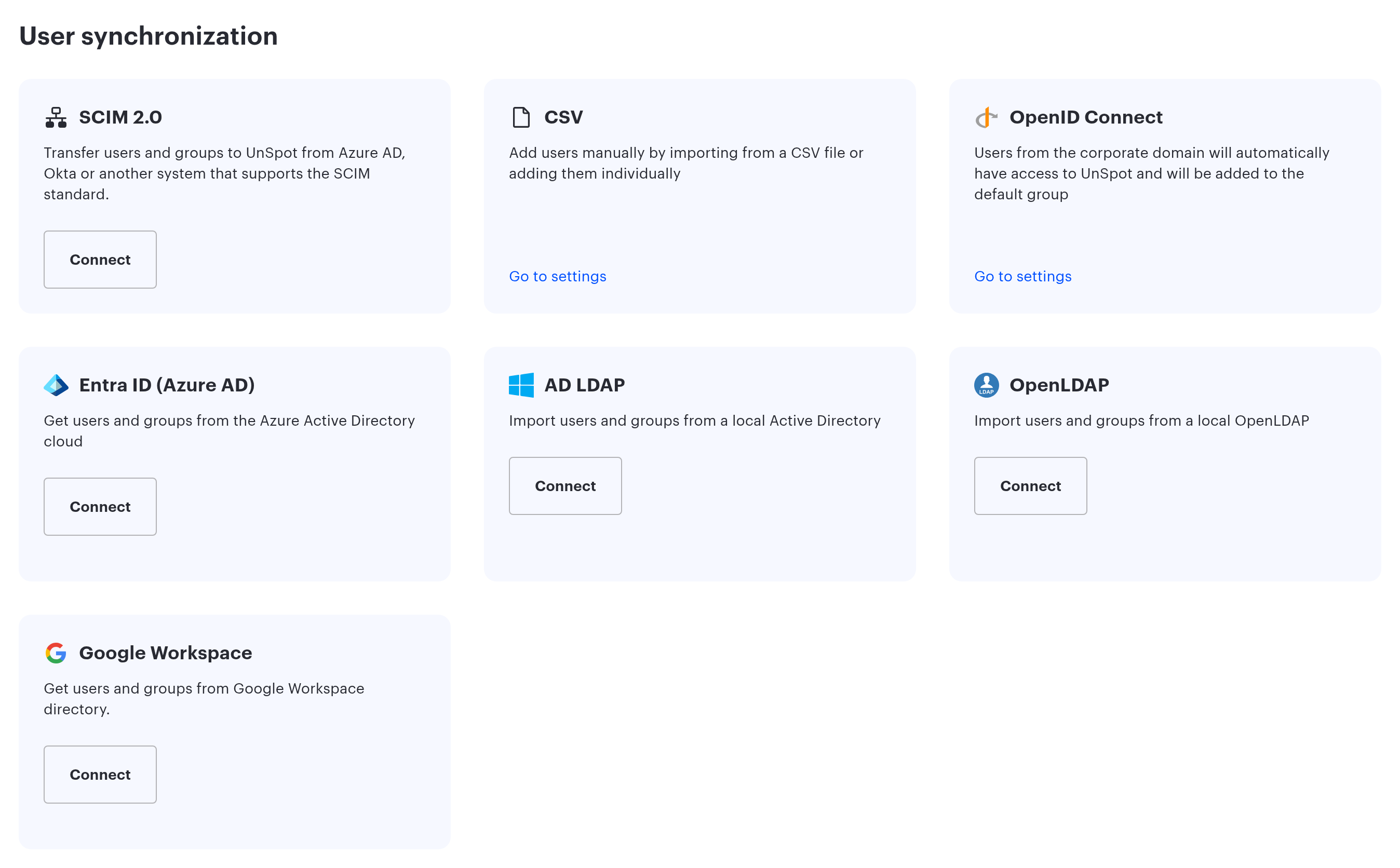
Click Connect on the AD LDAP card — the Synchronization settings dialog opens (for an integration that is already set up, the same dialog opens from Edit). You fill the dialog in from the top down, and it is split into four blocks, in this order:
- Connection settings — the protocol, the directory server address, the port, the DN and the service account credentials.
- User synchronization settings.
- User attribute mapping — which directory attribute each employee record field comes from.
- User synchronization settings — the user filter, and Additional synchronization settings — access groups, the org structure and welcome emails; the groups and the org structure each have their own filter.
Below the blocks sits Integration Check: until it passes, the connection is not saved (step 7). Start with Connection settings:
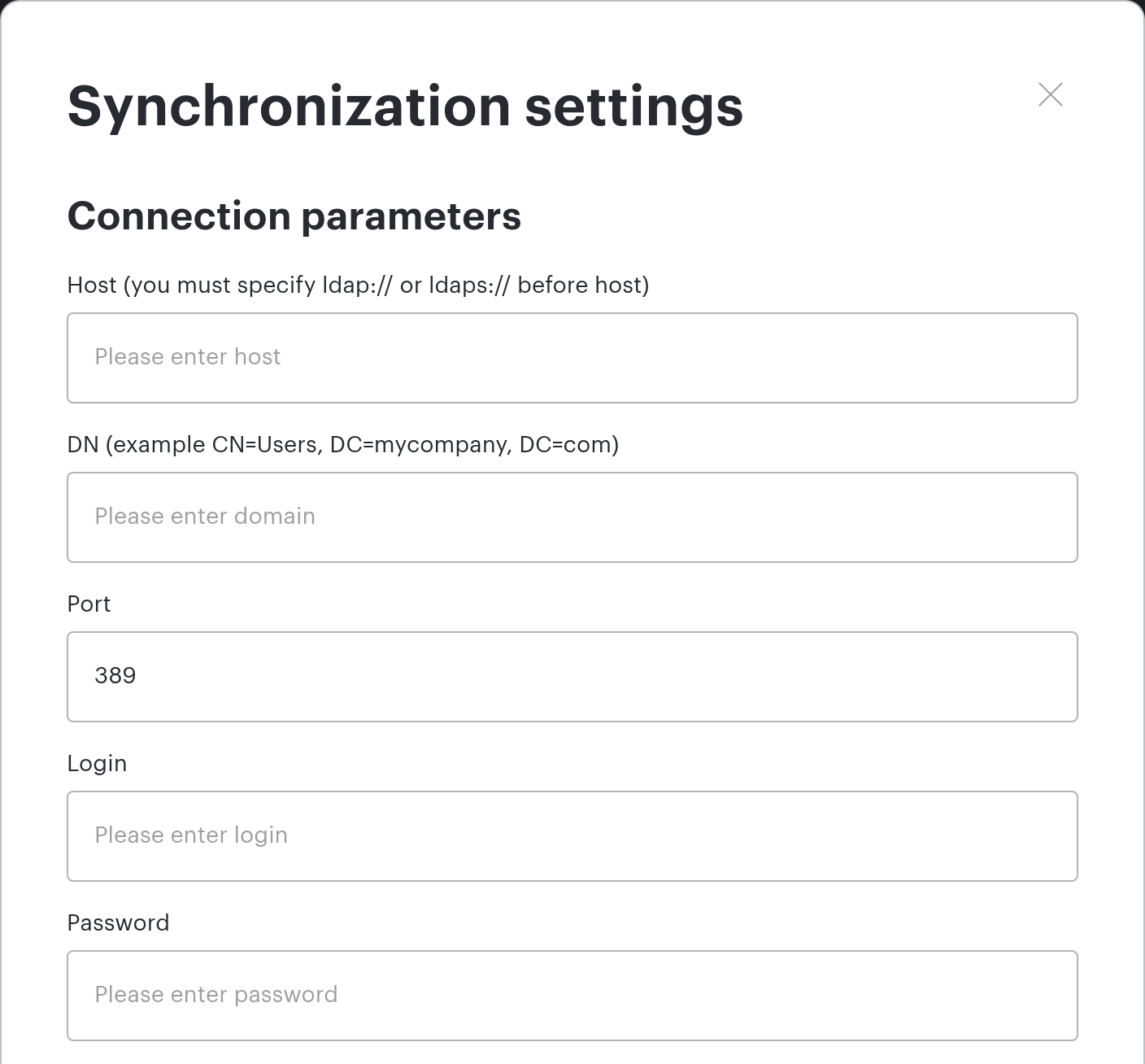
| Field | What to enter |
|---|---|
| Protocol | A required list: “LDAP · unencrypted (389)” or “LDAPS · encrypted (636)”. Until you pick a value the field shows the “Select Protocol” hint |
| Host | The network address of the directory server without a protocol prefix — dc01.mycompany.com, for example. You no longer type the prefix here: UnSpot adds it from the protocol you picked when the settings are saved, and for a connection that is already set up it works the protocol out from the stored address |
| DN* | The distinguished name of the container to search users from. The sample under the field reads “Example CN=Users, DC=mycompany, DC=com”. The field is required: searching from the directory root is not possible |
| Port | Filled in for you when you pick a protocol — 389 for LDAP and 636 for LDAPS — as long as the field is empty or holds the other protocol default. Enter a non-standard port yourself: a value you typed is not overwritten |
| Login | The account UnSpot will read the directory with. Read access is enough. The string is passed to bind as is — a UPN (svc-unspot@corp.local) or a full DN both work |
| Password | The password for that account. It is required for a new connection. When you edit an existing connection you may leave the field empty — the stored password is then kept |
Pick “LDAPS · encrypted (636)” if your directory accepts such connections. The “LDAP · unencrypted (389)” option sends the login, the password and the directory contents over the network unencrypted. The companion article explains which compensating network controls are worth putting in place.
Step 2. User attribute mapping
The User attribute mapping block answers one question: which directory attribute each employee record field comes from. Three fields — Email, first name and last name — are set with lists; until a value is picked, the field shows the “Select Attribute” hint. All three are required and none of them has a default any more: Email used to be pre-filled with the first option, now you pick it yourself. The remaining fields are still checkboxes, but each one now has an attribute name next to it: department, manager, position, telephoneNumber, thumbnailPhoto. Those labels are fixed and do not always match what UnSpot actually reads: the position comes from the title attribute, and on the OpenLDAP card the department comes from departmentNumber and the photo from jpegPhoto. Ticking these fields is optional — you can connect with only the three required lists filled in.
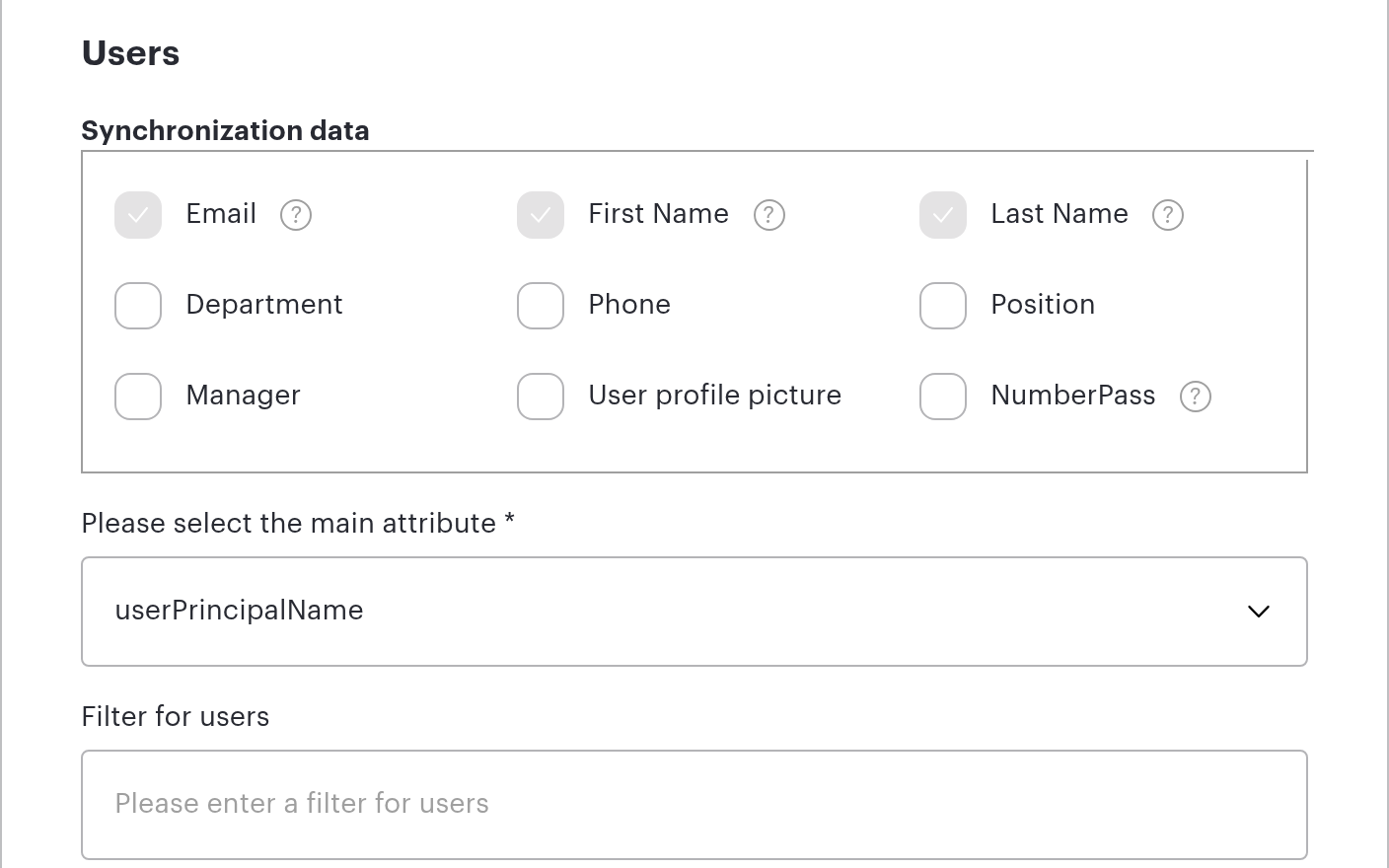
| Field in the dialog | Options in the list | What it means |
|---|---|---|
| Email* | userPrincipalName (on the AD LDAP card) or userName (on the OpenLDAP card); Email | The employee login in UnSpot. Directory entries are matched to employee records by this value, so it has to be filled in for the users you synchronize. Entries without userPrincipalName are skipped regardless of the choice |
| First Name* | givenName; “displayName (Last name FIRST NAME Middle name)”; “displayName (FIRST NAME Middle name Last name)” | The first name in the employee record. The first option takes the attribute as a whole, the other two cut the required word out of displayName |
| Last Name* | sn; “displayName (LAST NAME First name Middle name)”; “displayName (First name Middle name LAST NAME)” | The last name in the employee record. The first option takes the attribute as a whole, the other two cut the required word out of displayName |
How displayName is split. The value is split on spaces and repeated spaces are collapsed. The first part is the first word of the string, the middle part is the second word and the last part is the final word. The capitals in an option label show which word lands in the field: “displayName (Last name FIRST NAME Middle name)” takes the second word as the first name, and “displayName (First name Middle name LAST NAME)” takes the final word as the last name. When the required word is not there — for instance displayName holds a single word — or the attribute is empty, UnSpot falls back to givenName for the first name and sn for the last name.
If givenName and sn are empty as well, a last fallback kicks in: on the AD LDAP card the first and last name are taken from the name attribute (split on the first space), on the OpenLDAP card the email address is used instead. Only if the first name or the last name is still empty after all the fallbacks is the employee skipped silently — there is no error in the interface, no log entry and no line in the summary, the record simply never appears. In practice it rarely comes to that. A wrongly picked source usually shows up differently: the first or last name in the record looks like the name of the directory entry or like an email address. In that case check that the displayName split you picked matches the format used in your directory.
| Checkbox | Attribute shown next to it | What is transferred |
|---|---|---|
| Display Name | displayName | The Display Name field of the employee record — the name the employee is shown under across the product. The checkbox appeared on 31 Aug 2026 and is off by default. The attribute is transferred as is, with no word splitting and no fallbacks: if displayName is empty or missing in the directory, the field on the record is cleared. While the checkbox is off the field is left alone — whatever was entered manually stays. Once the checkbox is on, the field on the employee record becomes read-only and a hint on hover says “You cannot edit this field as this user is synchronizing with Active Directory” |
| Department | department | The department in the employee record. Mutually exclusive with org structure sync — see step 5 |
| Manager | manager | The manager in the employee record. In UnSpot the link is built by email address, so the manager record has to be part of the result as well |
| Position | position | The position in the employee record. Values longer than 128 characters are truncated |
| Phone | telephoneNumber | The phone number in the employee record |
| Profile picture | thumbnailPhoto | The employee photo. It is transferred by a separate job: the job starts right away when the integration is connected and when the checkbox is switched on, and later photo changes in the directory are picked up on the platform schedule; the daily cycle and the manual run button do not refresh photos |
Step 3. PACS number
The PACS number row (the label used to read NumberPass) works differently from the rest: instead of an attribute name, the checkbox has a text field next to it, with the “Specify LDAP Attribute” hint. The badge number is what PACS integrations and the Visitors module rely on.
- While the checkbox is cleared, the field is disabled and stays empty, and the attribute is not read from the directory at all.
- Ticking the checkbox makes the field required.
- The value is any attribute name your directory uses: there is no fixed list. A badge number rarely lives in a standard schema attribute, so it is usually added on purpose; the default value is
numberPass.
Step 4. Additional synchronization settings
Start with the User synchronization settings block: it holds a single field, User filter, and that field decides who ends up in the synchronization at all. The Additional synchronization settings block below holds access groups, the org structure and welcome emails.
User filter narrows the result with a standard LDAP filter of up to 255 characters. Write the filter with its own brackets — it is inserted into the overall condition as is. To synchronize only the members of one group:
(memberOf=CN=UnSpotUsers,OU=Groups,DC=mycompany,DC=com)
With an empty filter, every matching object inside the given DN is synchronized. Check the limit on returned entries on your domain controller — in Active Directory that is MaxPageSize, 1000 by default. UnSpot reads the result in a single request, and if the directory returns it incomplete, the missing employees look as though they were deleted from the directory: their records are archived and their bookings cancelled. Keep the filter narrow enough to fit the limit.
Step 5. Groups and organizational structure
The same block holds two independent toggles, each with its own description and its own filter. The filter fields are always visible but stay inactive until the toggle is on. The group filter and the org structure filter take up to 255 characters.
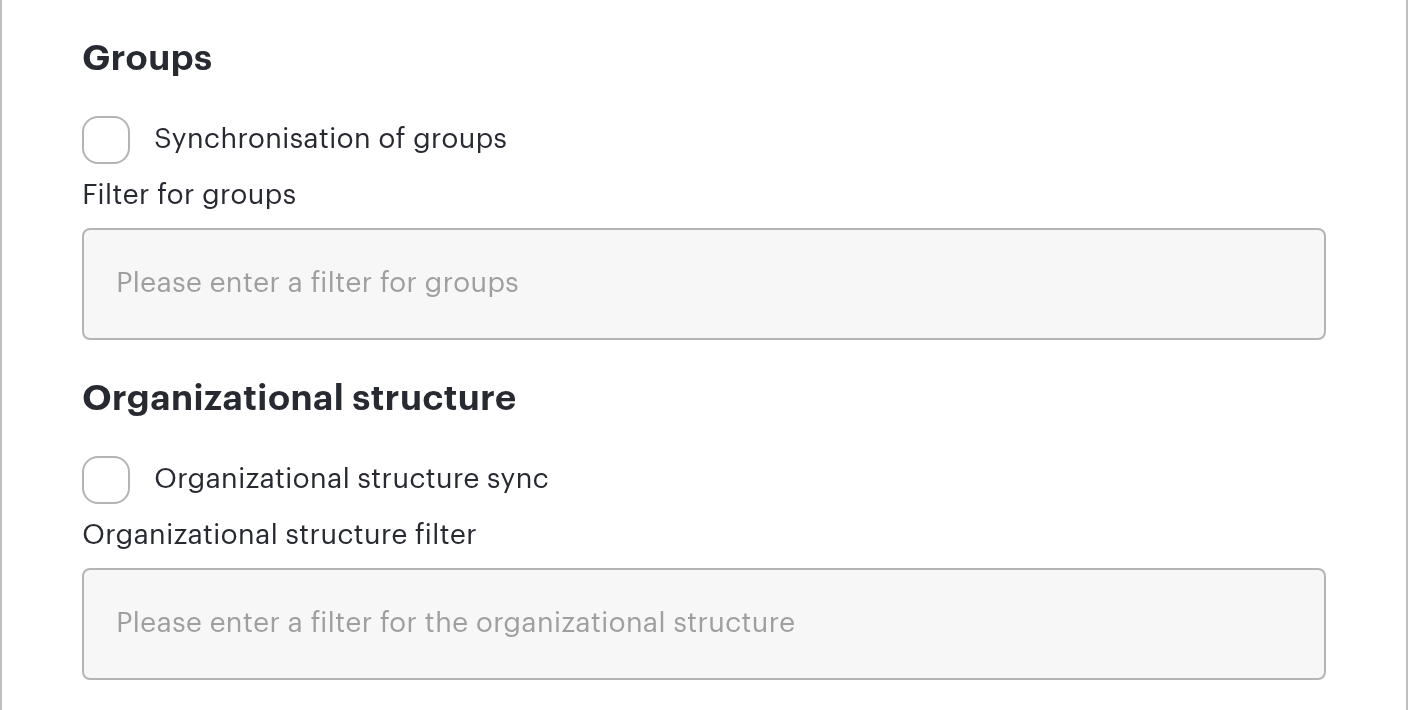
| Toggle | Filter | What it does |
|---|---|---|
| Synchronize access groups | Group filter | The dialog describes it as “Import access groups from Active Directory”. Directory groups are transferred into UnSpot groups, where they can be used in booking policies, locker access and permissions. The directory owns membership: synchronized employees added to such a group by hand are removed from it on the next cycle; records created in UnSpot manually and not linked to the directory are not affected. A group that drops out of the directory or out of the filter is deleted from UnSpot entirely — together with its role in booking policies and access rights |
| Synchronize org structure | Org structure filter | The dialog describes it as “Build the org structure from Active Directory”. The department tree is transferred from the directory. For Active Directory the head of the department is transferred as well, from the managedBy attribute |
Department and Synchronize org structure are mutually exclusive. You cannot enable both: an employee department is filled from a single source. The form blocks the second option, and an attempt to save both is rejected.
When the department tree is refreshed. While Synchronize org structure is on, the tree is read from the directory on every daily cycle and when you click Update on-premise AD (Update on-premise on the OpenLDAP card), as well as right away when the integration is connected and when the toggle is switched on. The tree is refreshed first, before employees and groups, so after a reorganization in the directory it is enough to wait for the daily cycle or to start the exchange manually.
Step 6. Welcome emails
The Send welcome emails toggle controls onboarding: the dialog describes it as “Send users a short getting-started email when their account is created”. The toggle is off by default. If you would rather set the workspace up first and invite people later, leave it off.
Step 7. Integration Check
At the bottom of the dialog there is the Integration Check block with a Run integration test button. The check calls the directory with the parameters currently in the dialog and returns up to five lines:
| What is checked | Line on success | Line on failure | What it means |
|---|---|---|---|
| Connection | Host is available, connection established | Connection error. Check the connection protocol, server address, and port. | UnSpot reached the directory server over the protocol, address and port you entered |
| Credentials | Credentials accepted | Authorization failed. Check the username and password of the account. | The directory accepted the service account login and password. The line appears only if the connection was established |
| Users | Users found | Users: Not found | At least one user entry was found inside the given DN with the user filter applied |
| Access groups | Access groups found | Access groups: Not found | At least one group passing the group filter was found. The line is shown only while the access groups toggle is on |
| Departments | Departments found | Departments: Not found | At least one department passing the org structure filter was found. The line is shown only while org structure sync is on |
The lines about users, groups and departments appear only once both the connection and the authorization have passed: until UnSpot reaches the directory there is nothing to look for.
The connection is not saved until the check has passed. The save button runs the check itself, and the settings are written only if it succeeds. Success means the connection, the credentials and the users, plus the groups and the departments when the matching toggles are on. When the required fields of the dialog are not filled in, or the check request itself fails, “Integration check failed” appears under the block. When the check did run but some lines did not pass, there is no separate message — read the lines in the block. A failed request also raises an error message; when the server returns nothing, that message is “Failed to check LDAP integration”.
Any change to the connection parameters clears the check result. Changing the protocol, the host, the port, the DN, the login, the password, a filter or a toggle means the check has to be run again.
Two more things worth knowing in advance. A failed check does not flag an existing integration as broken: it leaves the state of a connection that is already set up untouched, and the synchronization keeps running on the previous parameters. And the check reads a single entry of each kind, so it answers the question “is this reachable at all”, not “how many employees will be loaded”: a check that passes is no promise that every employee you need ends up in the result.
What is available after connecting
The card shows the connection address and the Synchronization fields: list, where the badge number is now called Badge Number instead of NumberPass. From then on the synchronization runs automatically, once a day on the platform schedule. The buttons on the card:
| Button | When it is available | What it does |
|---|---|---|
| Update on-premise AD (Update on-premise on the OpenLDAP card) | while the connection is healthy, at most once an hour | Starts the exchange manually: users, groups, group membership and — while org structure sync is on — the department tree. It does not refresh photos. After you click it the button is disabled and the hint shows when the next run will be available |
| Edit | while the connection is healthy | Opens the settings: connection parameters, field set, filters, group and structure checkboxes. Newly added checkboxes apply right away — UnSpot starts an unscheduled exchange without waiting for the daily cycle; clearing a checkbox takes effect from the next cycle. This is also how you change the service account password — reconnecting is not needed for that. You may leave the password empty when editing, but the dialog still saves only after the integration check has passed |
| Reconnect | only while the connection is flagged as invalid — the card then reads that the account is not valid and asks you to reconnect it or use another one | Disconnects the integration: it clears the settings and the links between directory entries and UnSpot records. You then set the connection up again from Connect — the dialog opens empty and objects are matched again by email address. If you only need to change the password, use Edit |
| Disconnect | always | Stops the synchronization. Employee records and the groups that were created stay in UnSpot, but the links to directory entries and the synced flag on departments are removed (when SCIM provisioning is connected in parallel, the flag on departments is kept) |
How the OpenLDAP card differs
Next to AD LDAP there is a separate OpenLDAP card, for OpenLDAP and compatible directories. The settings form is the same, the manual run button is called Update on-premise and is limited to one run per hour in the same way. The differences an administrator will notice:
| What | AD LDAP | OpenLDAP |
|---|---|---|
| User object class | objectClass=user | objectClass=inetOrgPerson |
| Group object class | objectCategory=group | objectClass=posixGroup — gidNumber and cn are required |
| First option in the list for Email* | labelled userPrincipalName, and that is what is read | labelled userName, but uid is what is actually read |
| Mandatory entry attributes | userPrincipalName | uidNumber and mail — an entry missing either is skipped |
| Department attribute | department | departmentNumber |
| Photo attribute | thumbnailPhoto | jpegPhoto |
| Disabled accounts | filtered out automatically | not filtered — exclude them with the filter |
| Head of department | transferred | not transferred |
Ready-made templates for the OpenLDAP user filter. Members of two groups (the memberOf overlay must be enabled): (|(memberOf=cn=unspot-users,ou=groups,dc=example,dc=com)(memberOf=cn=contractors,ou=groups,dc=example,dc=com)). Excluding blocked accounts depends on your schema attribute — for example (!(nsAccountLock=TRUE)) in 389 Directory Server and FreeIPA. Remember that the filter is inserted into the service query together with its own brackets.
If something does not work
| What you see | Why | What to do |
|---|---|---|
| “Connection error. Check the connection protocol, server address, and port.” | The integration check did not reach the directory | Check the protocol, the address and the port, and that the firewall lets inbound connections from the UnSpot addresses through. A common cause is a protocol and port the directory does not listen on. UnSpot waits 5 seconds for the directory to answer — on a slow link the check can fail even though the directory is alive |
| “Authorization failed. Check the username and password of the account.” | The directory rejected the login or password | Check the service account, that it is not locked and that its password has not expired |
| “Integration check failed” | The dialog does not save until the check passes in full | Click Run integration test and work through the lines that did not pass. Remember that editing any connection parameter clears the result |
| “Failed to check LDAP integration” | The check request itself did not go through | Make sure the required fields are filled in and run the check again |
| A message that user synchronization is already connected through another directory service | Another synchronization method is already connected | Disconnect it first, then connect this one |
| A message that the synchronization time has not come yet | The manual run was less than an hour ago | Wait until the time shown in the button hint |
| A message that department and organizational structure cannot be synchronized at the same time | Both mutually exclusive settings are selected | Keep one of them — see step 5 |
| Not all employees were synchronized | The result was incomplete: the attribute picked for Email is empty, the entry was excluded by the filter, the server-side entry limit kicked in — or the first or last name came out empty after the displayName split and the employee was skipped silently | Compare the name sources you picked with what the directory actually holds, then check the filter and MaxPageSize on the domain controller. Employees skipped over an empty name simply never appear, whereas employees that drop out of the result are archived, and their bookings are cancelled |
| The department tree is out of date | The directory changes have not been picked up yet — the tree is refreshed on the daily cycle; or the department does not pass the Org structure filter | Click Update on-premise AD (Update on-premise on the OpenLDAP card; at most once an hour) or wait for the daily cycle; check the org structure filter |
| Avatars did not appear | Photos are moved by a separate job: an unscheduled run starts right after connecting or ticking the checkbox, later changes follow the platform schedule | If photos are missing right after you ticked the checkbox, check the account permissions on thumbnailPhoto; a photo changed in the directory appears after the next run of the job |
Changes made by the synchronization are visible in Analytics > Reports, the User management history report: such entries carry a synchronization marker in the initiator column.
