
Connect a Google Workspace calendar to a meeting room
A Google Workspace calendar can be linked to a meeting room so that bookings and meetings travel both ways: a meeting created in the calendar turns into a meeting room booking in UnSpot, and a booking made in UnSpot shows up in the calendar. Changes are synchronised automatically.
What you will need
- The Super Administrator or Offices Administrator role in UnSpot — connecting a calendar to a meeting room is available to them only.
- An office structure configured in UnSpot: the meeting room must exist in the workspace tree. The calendar is connected to the meeting room itself — an office or a floor cannot take one.
- A meeting room resource calendar created in Google Workspace — see Create a resource calendar in Google Workspace.
- A Google account that has the rights to manage that calendar. How to grant them — Prepare Google calendar to work with UnSpot.
The calendar is connected on behalf of the Google account you sign in with at step 2. We recommend creating a dedicated service account for this: if the connection is made under an employee’s personal account, synchronisation will stop the day that account is disabled.
Step 1. Open the meeting room calendar setup
In the admin panel go to Manage → Office management → Workspaces. Find the meeting room you need in the tree, hover over its row and click Connect calendar.
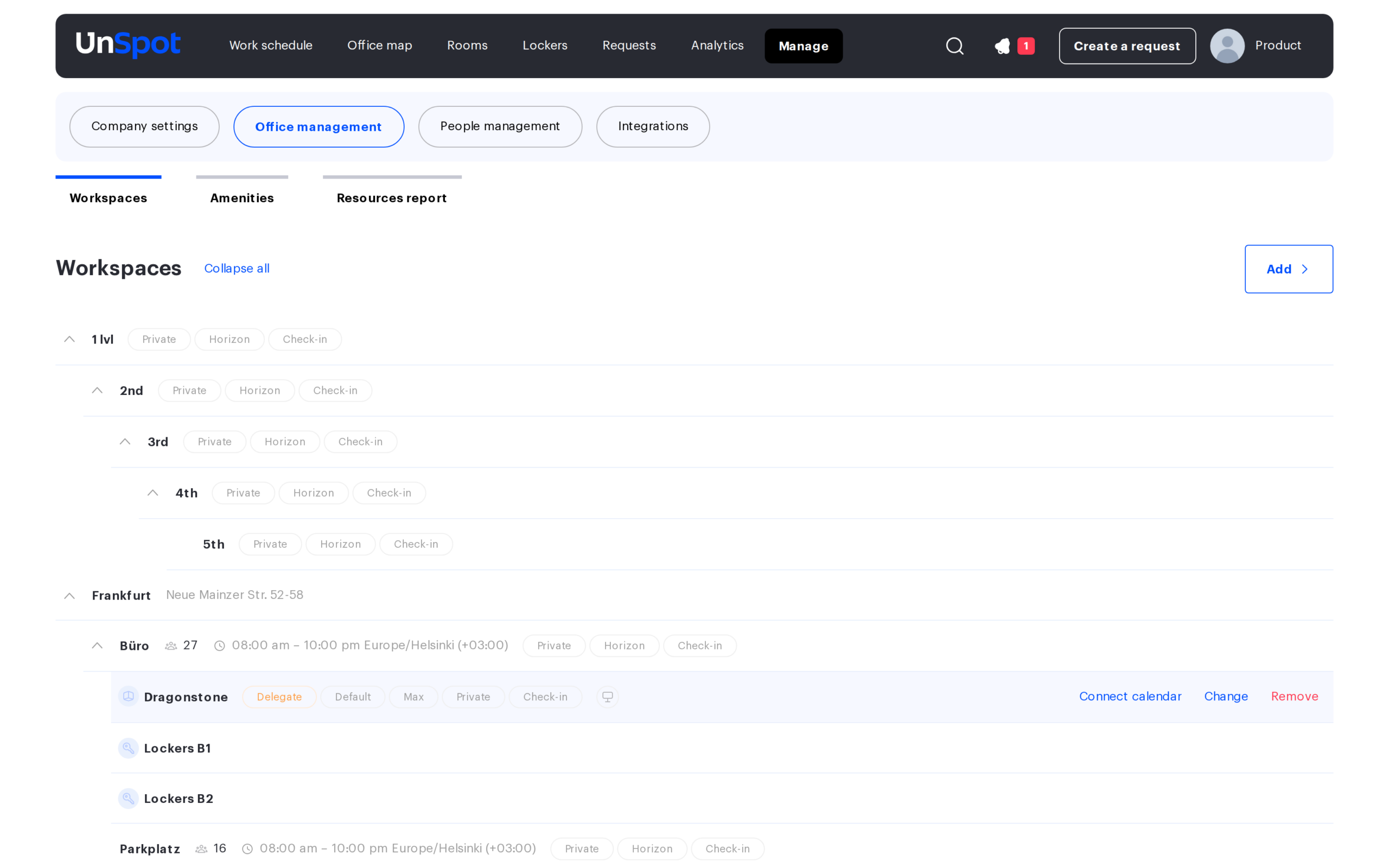
The button appears only on meeting rooms. An office or floor row carries a different set of buttons: Change map, Change settings, Remove.
Step 2. Choose Google Workspace and sign in
The Room Calendar Setup: window opens with the name of the selected meeting room. Click Google Workspace — the caption under the button reads Connect to Google Workspace.
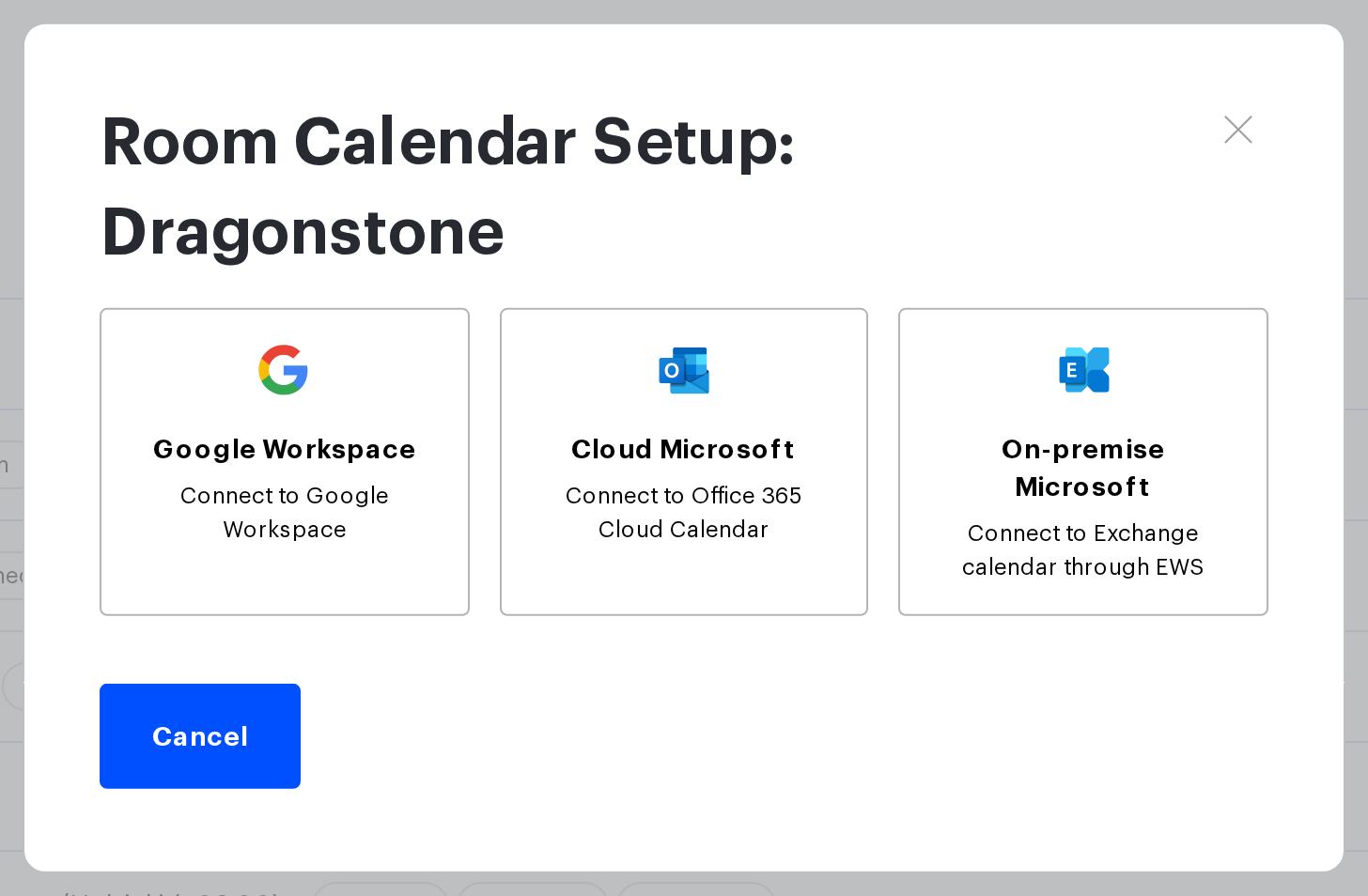
If you see more than three buttons in this window, that is normal: extra options appear when the company already has the matching connections configured. More about this — in Meeting room calendar: connection options overview.
UnSpot then hands you over to the Google sign-in page. Sign in with the account you need and allow the UnSpot application to access the calendar.
Step 3. Choose a calendar and connect it
After the sign-in the Calendar connection step opens with the prompt Choose a calendar to connect it to the space:. The list is built from the calendars of the account you signed in with. Select the one you need and click Connect.
If the calendar you need is missing from the list, the account has no rights to it — follow the How to grant permission to access the calendar? link right in this window.
Only the calendars that the account you signed in with owns get into the list. A calendar shared with weaker rights is not offered and cannot be connected — grant the account owner access to it first.
How to check that the calendar is connected
After a successful connection the window shows the linked calendar, and the meeting room in the workspace tree gets the provider icon.
The same window offers the Start Sync button (a one-off forced reconciliation of events, no more than once an hour — the Available at caption next to the button shows the time of the next attempt) and Reconnect, in case UnSpot has lost access to the calendar. Only a Super Administrator can start the synchronisation manually.
Disconnecting the calendar
Hover over the meeting room, click Connect calendar and then Disconnect in the window that opens. Confirm the action in the Are you sure that you want to disconnect calendar from space? prompt.
What happens on disconnect: UnSpot unsubscribes from the calendar notifications and removes the link. Bookings already created in UnSpot and events already in the calendar stay where they are — they simply stop being synchronised. If this Google account has no other calendar connected in UnSpot — neither another meeting room nor an employee’s personal calendar — its authorisation in UnSpot is removed as well, and you will have to sign in again the next time you connect.
Limitations
- One calendar — one meeting room. A calendar that is already connected to another meeting room or to a user profile cannot be selected. And the other way round: a meeting room that already has a calendar will not take a second one — disconnect the current one first.
- A calendar cannot be connected to an office or a floor. A calendar is linked to the meeting room itself.
- The calendar of an external meeting room cannot be disconnected — the Disconnect button is not available for it.
- The list of calendars is built from the rights of the account you signed in with. If the employee whose account was used to connect the calendar leaves and their account is blocked, synchronisation stops.
Connection errors
| Message | What happened | What to do |
|---|---|---|
| The calendar {calendar} is already connected to another resource. | This calendar is already linked to another meeting room or to a user profile | Pick a different calendar, or disconnect it from the previous resource |
| This space has connected calendar “{calendar}”. Please disconnect it first. | The meeting room already has a calendar | Disconnect the current calendar and connect the new one |
| The external calendar not found. | The calendar was deleted at the provider, or the account lost access to it | Check that the calendar exists and that the permissions are granted |
| Calendar is not available | UnSpot lost access to the connected calendar | Click Reconnect and sign in again |
