
Statuses in the schedule: setting them and the effect on bookings
Statuses in the Work schedule section show colleagues where you work on each day of the week, and they are directly tied to desk booking: one mark creates a booking, another removes it. This article covers what statuses exist, how to set them and what happens to bookings along the way. Configuring the statuses themselves is described in “Manage statuses in the schedule”.
What statuses exist
A status is a mark on a day of the week that shows colleagues where you work that day. Six kinds of marks appear in the schedule, and only three of them are set by hand.
| Mark | Where it comes from | What it means |
|---|---|---|
| “Office” | set manually | A desk booking is created for that day. The status itself is not stored — the booking is what makes the day an office day |
| “In office” | calculated | The label of a day that has a desk booking. It cannot be set on its own — it appears together with the booking |
| “Remote” | set manually | A working day outside the office |
| “Not working” | set manually | A non-working day: vacation, sick leave, a day off |
| A sub-status | set manually | An option inside “Remote” or “Not working” — for example, “Vacation” or “From home”. The list is defined by the company administrator |
| “Weekend”, “Hols” | calculated | The day is non-working according to the company public holiday calendar |
| “Status unavailable” | calculated | The sub-status that stood in this day was deleted by the administrator, or the office from the template is hidden or closed for your access group. The day has to be filled in again |
Internally only two values are stored — “Remote” and “Not working”. Everything else is calculated at display time: “In office” from the booking, “Weekend” and “Hols” from the public holiday calendar, “Status unavailable” from a broken link to a deleted sub-status. This explains the main property of the section: a status and a booking displace each other, as described below.
How to set a status
- Open the Work schedule section. Use the arrows to switch weeks; the button next to them returns you to the current week.
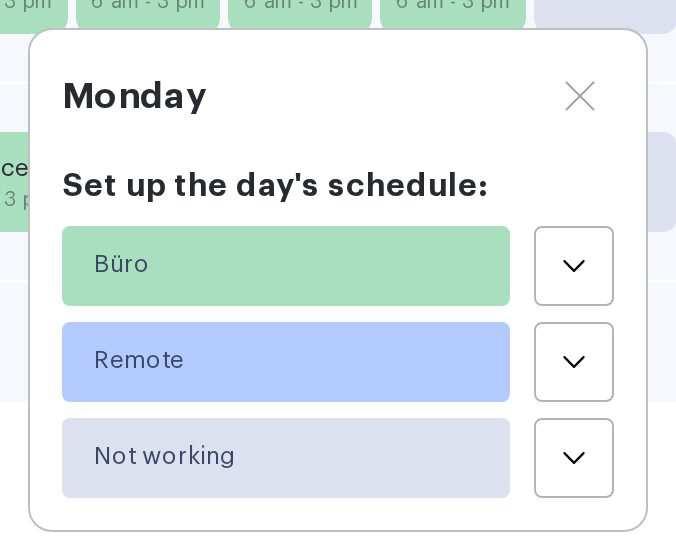
- Click the cell you need in your own row. The day window opens with the heading “Set up the day’s schedule:” — or “Edit schedule:” if the day already has a status.
- Choose one of the three buttons: Office, Remote or Not working. The button of the status already set is not shown. If you have a favourite office, the first button carries its name instead of the word “Office” — that is the office the booking will be made in.
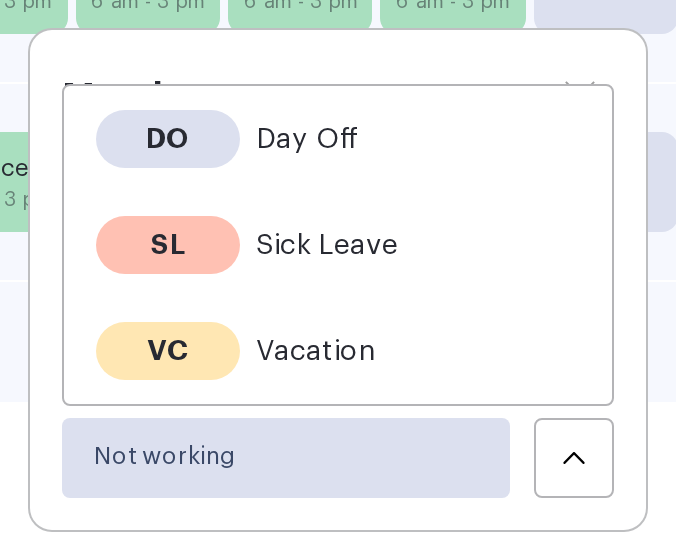
- On the “Remote” and “Not working” buttons an arrow opens the list of sub-statuses — pick one.
- On the “Office” button an arrow means something else: several offices are available to you. Open the list and pick one — that choice is the “office from the request” in the desk-selection rules below.
Weekends and holidays can be filled in as well: a Saturday or Sunday cell opens exactly like a weekday.
If a group has at least one sub-status, the group itself can no longer be selected. As soon as the administrator creates the first option inside “Remote”, the “Remote” button stops working on its own — a specific sub-status has to be chosen. This applies to setting a status on a day, to the schedule template and to changing the status for a whole team.
What happens when you choose “Office”
“Office” is the only button that does not set a status — it creates a desk booking. The desk is picked automatically, in a strict order of priority.
| Priority | Which desk is taken |
|---|---|
| 1 | The desk assigned to you personally for this day of the week |
| 2 | A desk where you are listed as a priority employee |
| 3 | A desk assigned for this day of the week to your access group |
| 4 | Your favourite desk |
| 5 | The desk from your latest booking in this office — a future one included |
| 6 | The first available desk of the office |
The office is resolved in the same order: the one selected in the window; if nothing was selected, your favourite office; if that is not set either, the only office of the company that has desks. When several offices qualify and no favourite is set, the system asks you to choose one explicitly.
The booking covers your working hours in that office on that date. If the working day in the office is already over, a booking for today will not be created.
When a booking cannot be created
| What happened | What to do |
|---|---|
| The office has no desks available to your access group | Ask the administrator for access — this is an access setting, not a schedule one |
| All available desks are taken on that date | Choose another office or another date, or book a desk manually on the office map |
| The date is beyond the booking horizon | Wait until the day falls inside the horizon set by the office policy |
| The desk is taken and you are allowed to free it | The system offers to replace the other booking — the replacement is confirmed separately |
What happens when you choose “Remote” or “Not working”
Setting any status on a day removes your desk booking for that day. The rule applies to sub-statuses and to resetting a status as well.
| State of the booking | What happens to it |
|---|---|
| Has not started yet | Deleted |
| Already running | Stopped at the current time |
| Created from an assigned desk | Cancelled as an automatic booking. While the status stays on that date, the desk is not booked again — clear the status to bring it back |
| Already finished | Left untouched |
Three things worth knowing in advance:
- There is no warning before the booking is removed — the request is sent as soon as you press the button.
- No cancellation email is sent when you change the status yourself. It arrives only when somebody else removed the booking — a manager who switched your day, for example; it is switched off in the profile with the “Actions with my bookings” toggle.
- Meeting room and parking bookings are not affected. A schedule status removes only the desk booking; a meeting and a parking space have to be cancelled separately.
The reverse direction: a booking removes the status
The link works both ways. If you book a desk on the office map for a day marked “Remote” or “Not working”, the status is deleted and the day becomes “In office”. Conversely, when the booking is deleted the day is cleared: the “In office” label disappears, because it rested on that booking.
A practical consequence: to change the office on a day that is already filled in, you do not need to reset the status — press “Edit” in the day window and pick another office.
How to clear a day
To return a day to its empty state, open it and press “Reset”. The button appears when the day carries a status you set yourself — “Remote” or “Not working” — or a desk booking. If the day is only coloured in by the template and carries no status of its own, there is nothing to reset and the button is absent: such a day is edited in the template itself. There is no button on past days of your own row either, and while a booking is already running the button reads “Stop” instead of “Reset”.
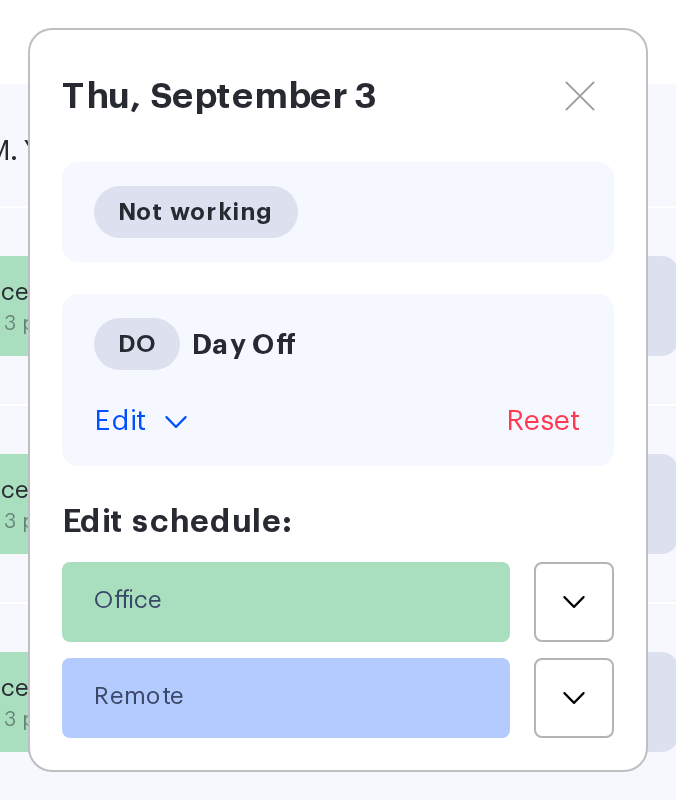
Reset follows the same rules as setting a status: the desk booking for that day is removed as well — one that has not started is deleted, one that is already running is stopped at the current time. Meeting rooms and parking are not affected.
After a reset the day counts as empty again, so the template can fill it in at the next Friday carry-over. If the day has to stay empty, clear that weekday in the template or switch the template off: Work schedule template.
When a status cannot be changed
| Situation | Behaviour |
|---|---|
| The day is in the past | Your own past day cannot be changed — the window shows the line “Editing past days is not available”. A manager can edit past days of a subordinate |
| The booking for that day has already started | The status is not changed: the system replies that you have a booking that has already started. Stop the booking first with the “Stop” button |
| A base status was chosen that has sub-statuses | A sub-status has to be selected — see above |
| The day shows “Status unavailable” | The sub-status was deleted by the administrator; choose another one |
There is no limit on how far ahead a status can be set: any future week can be planned. The depth limit applies to booking only, and it is set by the office policy.
Statuses for a colleague
A manager sets and resets statuses for subordinates — in their rows on the same page and by the same rules, except that past days are not blocked. Who counts as a subordinate and what else a manager can do is described in “What a manager can do” and “Teams in the schedule”.
“Ready for” marks
In the window of a day that has an office booking, three marks are available — “Coffee”, “Lunch” and “Dinner”. They are shown to colleagues as dots in the day cell and work as a filter in the colleague search.
- The marks are available only in a day with the “In office” status, that is, when a desk booking exists.
- They can be set only for yourself, and not for a past date.
- When the booking is deleted, the marks are cleared with it.
Limits and common misconceptions
| Misconception | How it actually works |
|---|---|
| “In office” is a status like “Remote” | It is the label of a day with a booking. It cannot be set on its own, and removing it means deleting the booking |
| A status affects access to desks | It does not. Access is defined by access groups, the owning department and desk assignment |
| “Not working” cancels all my meetings | Only the desk booking is removed. Meeting rooms and parking stay |
| An empty day means the employee is not working | An empty day only means it has not been filled in. “Not working” is set explicitly |
| A sub-status can be created for “In office” | It cannot: sub-statuses exist only inside “Remote” and “Not working” |
