
Desk and parking check-in: one shared setting
Booking control for desks and parking spaces has one shared setting. There is no separate rule set for parking: desks and parking spaces belonging to the same space obey the same stages, windows and check-in methods. If the rules have to differ — for example, strict control for parking and none for desks — the only way to achieve it is to split desks and parking spaces across different spaces. This article explains why, and what has to be done.
Why there is only one setting
It is visible in the block name on the settings page: Desk and parking space booking control. Inside the block you choose place types — Bookable and Assigned — but that is the type of use of a resource, not the resource kind: there is no “desks / parking” split among them.
The reason lies in where the setting is stored. Check-in rules belong to a space, not to a resource:
- a desk has no check-in settings of its own — it takes them from the space it belongs to;
- a parking space has no check-in settings of its own either — it takes them from the same space;
- so as long as desks and parking spaces live in one space, they physically share one rule set.
Neither the interface nor the API has a second set of settings that would apply to parking alone. There are no per-resource settings for any resource kind.
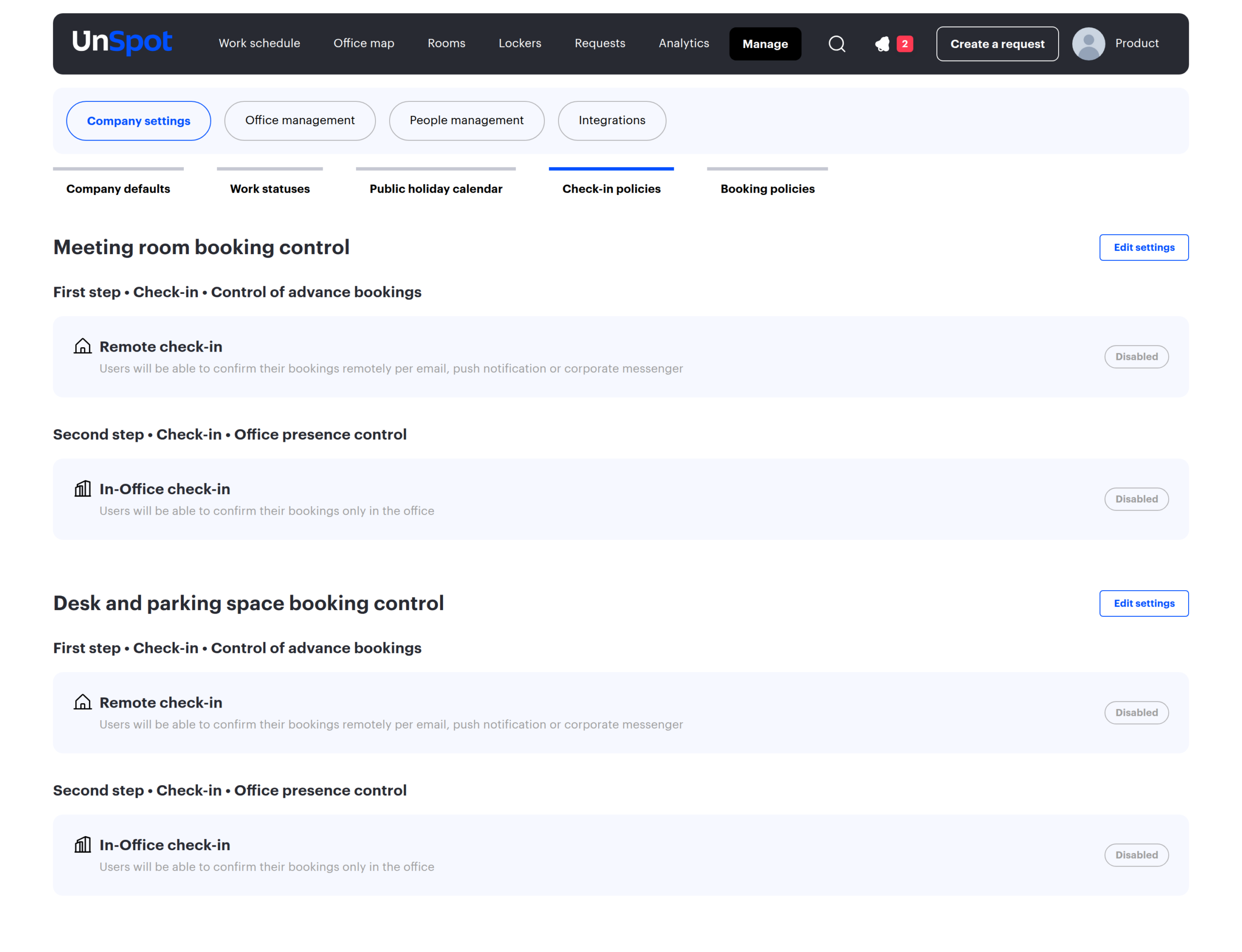
What follows from it
While desks and parking spaces live in one space, everything in the settings block applies to them identically: the enabled stages, the place types, both check-in windows, the check-in methods and the exception list. Local settings will not help — they are defined for the space as a whole, not per resource kind.
A practical example. There are usually far fewer parking spaces than desks, and a “dead” parking booking costs more — you would want to release it 15 minutes after the start. For desks such a window is too harsh: people are late, and cancelling their bookings creates friction. While parking and desks live in one space, choosing different windows is impossible.
How to split the rules: two spaces
The problem is solved structurally: parking is moved into a separate space, and each space gets its own local booking control settings.
- Open Manage → Office management → Workspaces and look at the tree: which space currently holds the parking spaces.
- Create a separate space for parking — for example, “Parking”. Create it inside the same office so that the address, time zone and working hours are preserved.
- Place the parking spaces on the map of the new space: in the map editor choose Add elements → Parking space. Existing resources cannot be moved between maps — they are recreated on the new map, and the old ones are removed after a check.
- Make sure only desks, meeting rooms and lockers are left in the original space.
- Open the parking space card, find the Booking confirmation block, click Edit settings, switch on Different from company settings and define the strict rules for parking.
- Open the card of the space with desks and define its own rules there — or leave the toggle off so that the company settings apply.
After that the two spaces have independent windows, stages and check-in methods.
If only parking needs the control, the company-wide settings can stay off entirely: enable local settings on the parking space alone. Leave the desk space on the company settings — the control simply will not run there.
What to check when splitting
| What changes | What to check |
|---|---|
| Access rights to resources | Access groups and assignments are attached to resources, not to a space. Access has to be configured again on the new parking spaces |
| Booking horizon and policies | Part of the rules is defined at the office level rather than the space level. Review the office card after the split |
| Office coordinates | The “Office location coordinates” line exists in the local settings of every space: if you plan automatic check-in by geolocation, both spaces need coordinates |
| Analytics and reports | The split changes the breakdown by space in reports: historical data stays attached to the old space |
| The map | A new space needs its own floor plan. Until there is one, resources cannot be placed on the map |
| Space visibility | Check the status of the new space: an unavailable space hides all of its resources |
⚠️ Deleting objects on a map cannot be undone, and the Remove all button in the map editor removes the floor plan together with the objects (its confirmation dialog says “Delete all objects and floor plan?”). Move resources one by one and delete the old ones only after the new map has been verified.
Parking check-in specifics
Even with identical settings, parking does not behave exactly like desks. This is system behaviour rather than configuration:
| Specific | How it works |
|---|---|
| A PACS entry does not confirm a parking booking | An access control event sets the employee presence status and confirms desk bookings. For parking this path does not work |
| “Switch off notifications” does not silence parking messages | The suppression is implemented for desks only: reminders and cancellation messages for parking bookings are sent even with the mode on |
| There is confirmation by vehicle plate | With licence plate recognition cameras connected, a parking booking is confirmed when the car drives in — parking only, and within one calendar day |
| Creating a booking by QR code | The first step is closed automatically — as for any booking created after the window opened. Unlike desks, though, a parking QR booking never closes the second step |
| Bot protection | Parking has a separate Captcha setting in the booking rules — unrelated to check-in, but often configured together with it |
| Check-in events in outgoing webhooks | Parking has dedicated outgoing events: a booking confirmed and a booking cancelled by check-in. Desks and meeting rooms have no dedicated check-in events in outgoing webhooks |
What cannot be done
- You cannot set a separate confirmation window for parking inside one space.
- You cannot enable the second step for parking spaces only.
- You cannot configure check-in on an individual parking space or desk.
- You cannot choose different exception groups for parking and desks of one space.
- You cannot inherit settings from a building or a city: the rules are taken from the space where the resources are.
