
Meeting room calendar: connection options overview
UnSpot can link a meeting room to its calendar at an external provider — Google Workspace, Microsoft 365 or Exchange. Once the calendar is connected, meetings from it become meeting room bookings, and bookings made in UnSpot appear in the calendar. There are five connection options, each designed for a different situation: this article helps you pick the right one and shows the order of the steps.
What you will need
- A role in UnSpot. A calendar can be linked to a meeting room by a Super Administrator or an Offices Administrator, but through a shared connection to Microsoft 365 or Exchange by a Super Administrator only. Creating a shared connection to Microsoft 365 or Exchange is available to a Super Administrator or an Integrations Administrator, and starting the synchronisation manually to a Super Administrator only.
- A configured office structure. The meeting room must exist in UnSpot as a space in the workspace tree. The calendar is connected to the meeting room itself — not to an office or a floor.
- A resource calendar at the provider. Every meeting room needs its own calendar or resource mailbox.
- Permissions for that calendar — either delegated to a specific account, or granted to an application or a service account.
Which option to choose
| Option | When it fits | Limitations | Article |
|---|---|---|---|
| Google Workspace | Meeting room calendars live in Google Workspace | The sign-in is repeated for every meeting room; permissions are delegated per calendar | Connect a Google Workspace calendar to a meeting room |
| Cloud Microsoft | Cloud Microsoft 365, few meeting rooms, a fast start without the tenant administrator | The sign-in is repeated for every meeting room; synchronisation stops if the delegate account is blocked | Connect a meeting room calendar with a Microsoft 365 service account |
| Microsoft App | Cloud Microsoft 365, many meeting rooms, one setup for the whole company | Microsoft Entra administrator rights are required; only a Super Administrator can link calendars through the connection | Connect Microsoft 365 via a Microsoft Entra application |
| On-premise Microsoft | Your own Exchange server, few meeting rooms | Server parameters are entered again for every meeting room | Connect a meeting room calendar to on-premise Exchange |
| Exchange service account | Your own Exchange server, many meeting rooms, one setup for the whole company | An account with the ApplicationImpersonation role is required; the calendar list is not loaded — the mailbox address is entered manually; only a Super Administrator can link calendars through the connection | Connect Microsoft Exchange via impersonation |
A short rule of thumb: up to five or ten meeting rooms are easier to connect one by one — Google Workspace, Cloud Microsoft or On-premise Microsoft (in the connection window these are the Google Calendar, Microsoft 365 and Exchange EWS tiles). Beyond that, it pays off to set up the Entra application or the Exchange service account once and then simply pick meeting rooms from a list.
Rollout order
The steps go strictly in this order — if you skip the preparation at the provider, the calendar you need will simply not appear in the list at the last step.
- Build the office structure in UnSpot — office, floor, meeting rooms.
- Create a resource calendar at the provider for every meeting room: in Google Workspace or in Office 365.
- Grant the permissions — in the way that matches the option you chose: delegating rights to an account (Google, Microsoft 365, Exchange) or granting permissions to an application or a service account.
- For Microsoft App and the Exchange service account only: create the connection in Manage → Integrations → Synchronisations, the Calendar synchronization block.
- Link the calendar to the meeting room — in the workspace tree with the Connect calendar button, or on the meeting room page itself, in the Synchronizations block.
- Check the synchronisation: create a test meeting in the calendar and make sure it shows up in UnSpot, then do the same the other way round.
Where to find it in the console
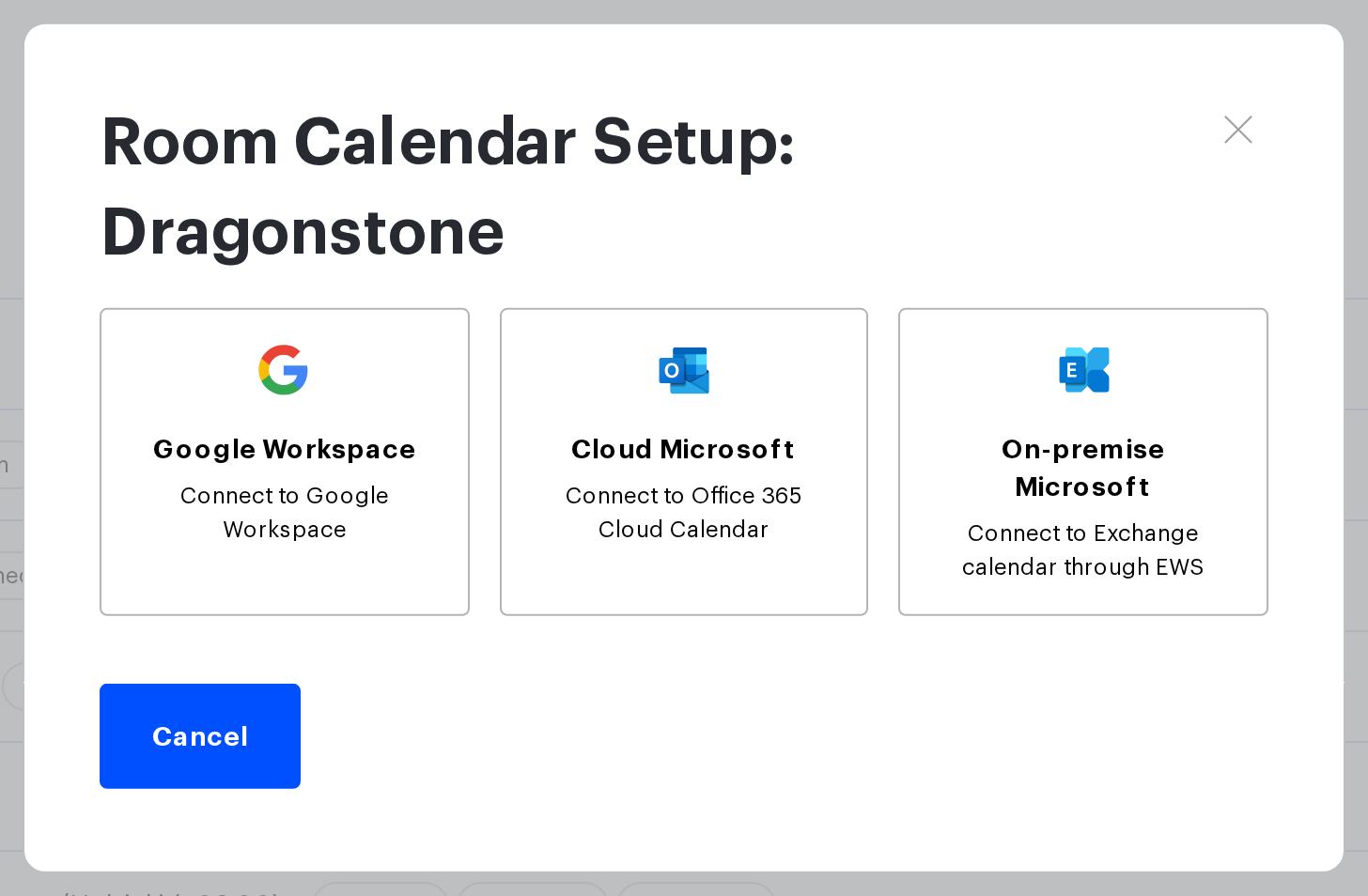
Linking a calendar to a meeting room: Manage → Office management → Workspaces. Hover over the meeting room row and click Connect calendar — the Connecting the calendar window with the connection options opens.
Under the window title, every step of the connection shows the line “Select a calendar for “Horizon” (Analytics)”: the meeting room name followed, in brackets, by its nearest parent, an office or a floor (if there is no parent, just the name). The name stays fixed for the whole connection flow, so when you work through several rooms in a row you can always see which one you are connecting. The line is the same for all connection methods.
The same window opens from the meeting room page: the meeting room Change button in the tree → the Synchronizations block → the Calendar card → Connect. After you sign in to Google or Microsoft 365 you return to the meeting room page. The same card shows the connected calendar — the connection method, the name and the address — and the Disconnect button.
Shared connections to Microsoft 365 and Exchange: Manage → Integrations → Synchronisations, the Calendar synchronization block. There is no separate Connections page in the interface — everything lives here.
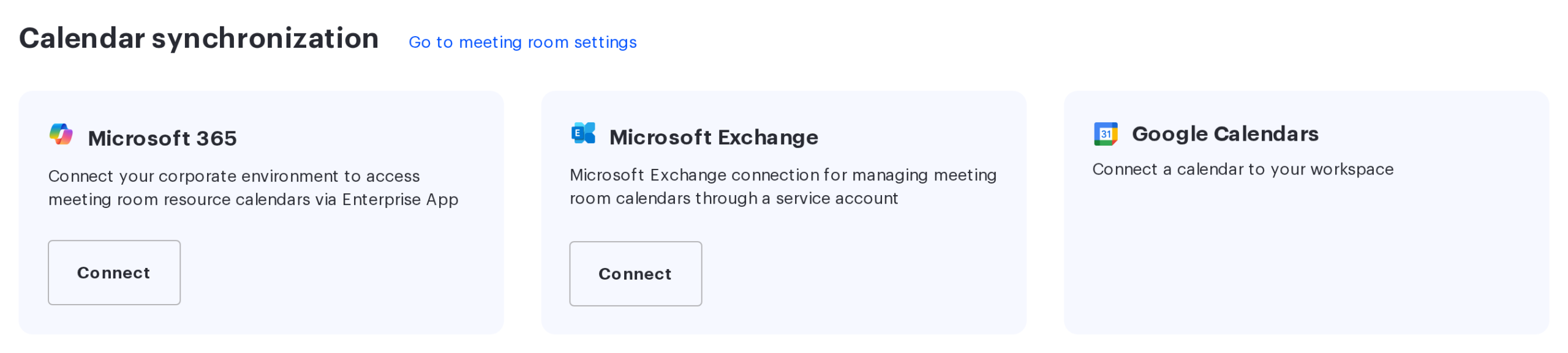
The Google Calendars card in this block is informational: it marks the provider as supported, but has no settings buttons of its own. Google calendars are connected only from the meeting room card.
Why the window does not show every option
The window shows not every supported option, but only the ones you can use right now. In cloud UnSpot three tiles are always there — Google Calendar, Microsoft 365 and Exchange EWS (the Google Workspace, Cloud Microsoft and On-premise Microsoft methods): they need no preliminary setup, the credentials are entered on the spot. In UnSpot installed on the company’s own server (on-premise) there are no Google Calendar and Microsoft 365 tiles — only Exchange EWS is always there. On the Calendar card of the meeting room page a connected calendar is labelled by method: Google Calendar, Cloud Microsoft, On-premise Microsoft, Microsoft, Microsoft Exchange.
The remaining buttons appear only after the matching entity has been created in Integrations → Synchronisations: a Microsoft 365 connection or a Microsoft Exchange connection. Every connection gets a button of its own — Microsoft or Microsoft Exchange — captioned Connection: followed by its name. Only a Super Administrator sees the connection buttons: UnSpot returns the list of connections to the Super Administrator and the Integrations Administrator, while linking a calendar is allowed to the Super Administrator and the Offices Administrator.
A connection button stays in the window even when the connection has stopped working. If the Entra application secret expired or was revoked, the connection card in the Calendar synchronization block is marked Connection Error, and picking the Microsoft button does not load the calendar list — the message Invalid credentials. appears. A Microsoft Exchange connection never gets such a mark: after the service account password changes, events from the calendars simply stop arriving. In both cases update the data with the Edit button on the connection card.
Limitations and common misconceptions
- One calendar — one meeting room. A calendar cannot be linked to two meeting rooms at once, or to a meeting room and a user profile at the same time. A meeting room that already has a calendar will not take a second one.
- A calendar is linked to the meeting room itself. An office or floor row does not offer the Connect calendar button — a calendar cannot be connected to them.
- Disconnecting a calendar does not delete data. Bookings in UnSpot and events in the calendar stay where they are — they simply stop being synchronised.
- Deleting a shared connection disconnects the calendars of every meeting room that relied on it. The interface warns about this in the confirmation window.
- The calendar of an external meeting room cannot be disconnected — such a meeting room comes from another company, and you do not manage its calendar.
- An employee’s personal calendar is a different story. It is connected by the employee in their own profile, not by an administrator.
If something goes wrong
| Symptom | Where to look |
|---|---|
| The calendar you need is missing from the list at the selection step | The calendar permissions were not granted, or were granted to a different account — see the articles about granting permissions |
| The meeting room has no Connect calendar button | An office or floor row is selected instead of the meeting room itself; or your role is not sufficient |
| Error messages pop up when the window opens, and there are no shared connection tiles | The window was opened by an Offices Administrator: the list of shared connections is not available to them. The basic tiles work; a calendar is linked through a shared connection by a Super Administrator |
| A booking made in UnSpot did not show up in the calendar | Check that the calendar is still linked to the meeting room and that the account behind it has not lost its permissions |
| Meetings from the calendar stopped arriving in UnSpot | Click Start Sync in the meeting room calendar window; if that does not help, reconnect the calendar |
| The calendar is marked as unavailable | UnSpot lost access to the calendar: the account lost its permissions or the application secret was revoked. For a calendar connected directly, use the Reconnect button. For a calendar on a Microsoft connection, the button opens Integrations → Synchronisations: fix the connection with the Edit button on its card — a Super Administrator or an Integrations Administrator does this. On-premise Exchange calendars are never marked as unavailable |
Related articles
- Microsoft calendar synchronisation: choosing an option
- How calendar synchronisation works
- Connect a Google Workspace calendar to a meeting room
- Connect a meeting room calendar with a Microsoft 365 service account
- Connect a meeting room calendar to on-premise Exchange
- Connect Microsoft 365 via a Microsoft Entra application
- Connect Microsoft Exchange via impersonation
- Integrations: overview
