
Check-in settings for a space and a meeting room
Booking control is configured at three levels: company-wide, per space with resources and per meeting room. The levels are neither merged nor inherited — the system always applies exactly one set of rules. This article explains how that set is chosen, what the “Different from company settings” switch does and when local settings are needed.
Three levels of settings
| Level | What it configures | Where it lives | Who can change it |
|---|---|---|---|
| Company | Default rules: one set for desks and parking spaces, another for meeting rooms | Manage → Company settings → Check-in policies | Super Administrator, Offices Administrator |
| Space | Rules for the desks and parking spaces of that space | Space card → the Booking confirmation block (the last one in the form) | Super Administrator, Offices Administrator, Office manager |
| Meeting room | Rules for one meeting room | Meeting room edit form → the Booking confirmation block | Super Administrator, Offices Administrator |
⚠️ There is no per-resource level: an individual desk or parking space has no check-in rules of its own — the nearest level for them is the space they belong to. Locker cell bookings are not covered by the control at all: check-in only applies to desks, parking and meeting rooms.
How company and local settings relate
There is one rule and it is strict: the system applies either the whole local set or the whole company set. It never mixes fields from different levels.
| Situation | Which rules apply |
|---|---|
| Local settings are not enabled for the space | Company settings — in full |
| Local settings are enabled for the space | The local set — in full, including empty values |
| Local settings are not enabled for the meeting room | The company-wide meeting room settings |
| Local settings are enabled for the meeting room | The local set of that room |
Two non-obvious consequences follow:
- Local settings do not “extend” the company ones. You cannot override just the time window and keep the check-in methods from the company: enabling local settings means defining the whole set from scratch.
- There is no inheritance down the space tree. Settings are taken from the space a resource belongs to — not from the building or the city above it. If rules are defined on a building while the resources sit on a floor, those resources use the company settings, not the building rules.
The “Different from company settings” switch
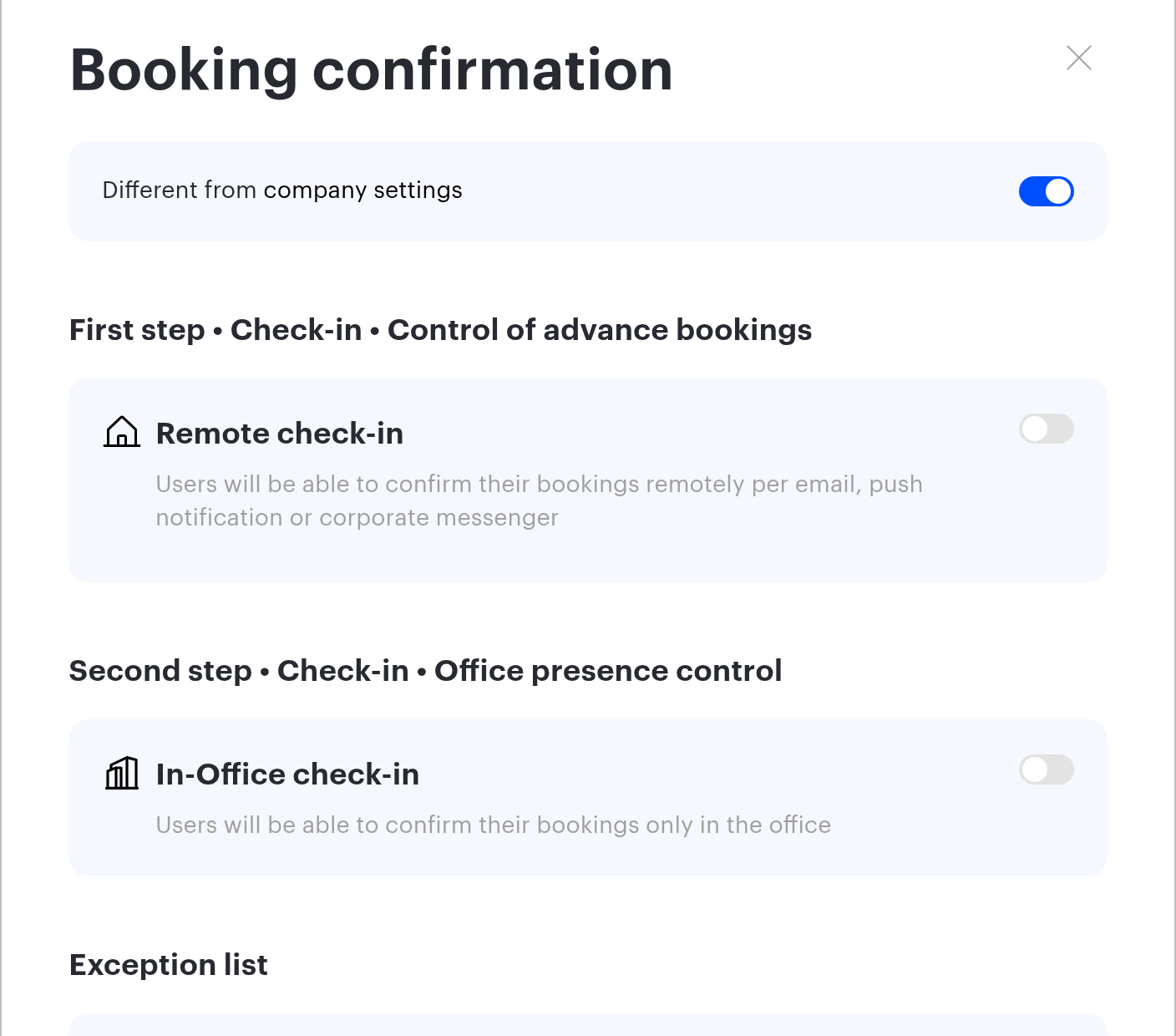
The toggle sits at the very top of the Booking confirmation window and exists only in local settings — the company page does not have it.
| Toggle position | What it means | What happens to the fields |
|---|---|---|
| Off | The space follows the company settings | The company values are displayed but all fields are locked — visible, not editable |
| On | The space has its own rules | The fields become editable |
⚠️ Switching the toggle on resets the fields to the default values instead of restoring the previous local ones. What happens on the switch:
- both stages are switched off;
- the check-in windows return to the default values;
- place types and check-in methods are cleared;
- the IP and SSID lists are emptied.
So the sequence “turn local settings off → turn them on again → save” wipes what was configured earlier. If you need to put a space back on the company rules temporarily and restore local ones later, write the values down first.
The reverse action erases them too: when the toggle is switched off and the settings are saved, the local values are not “parked” — they are deleted. The only thing that survives is the selected exception group.
Local settings of a space
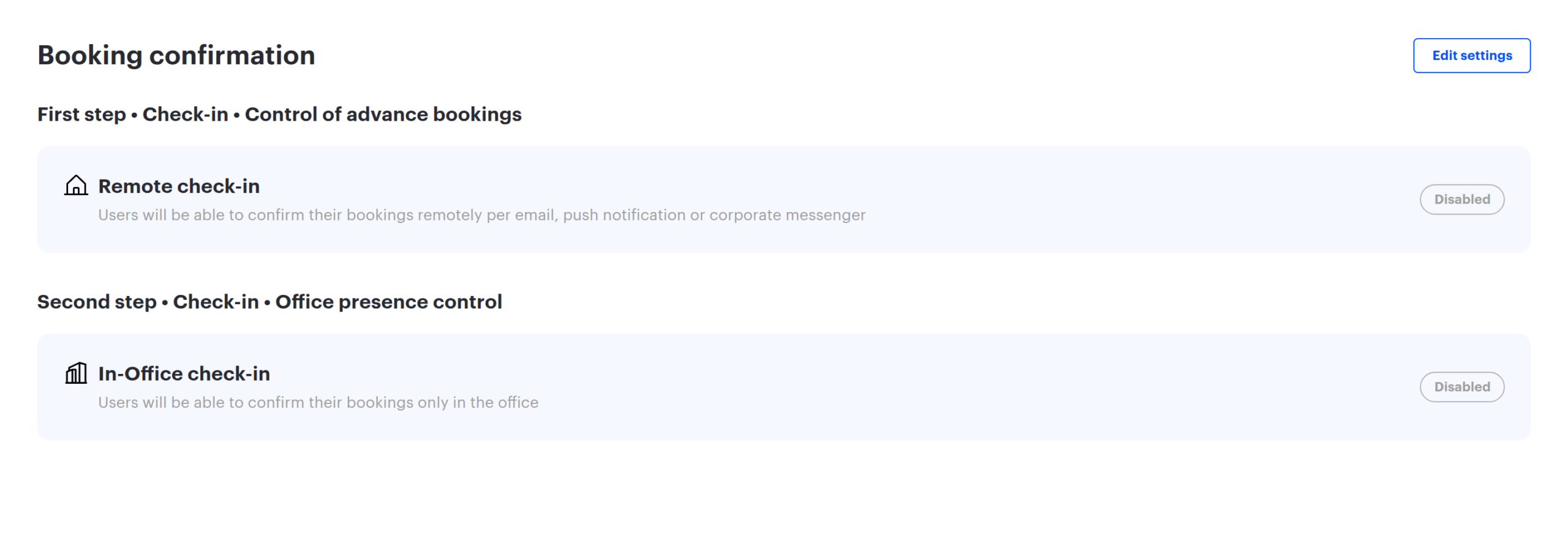
The Booking confirmation block is the last one in the space card, after Booking Rules. It shows the state of both stages and an Edit settings button that opens the same window as the company page.
The full set of desk and parking settings is available locally: both stages, place types, both check-in windows, all five check-in methods and a separate exception list. There are exactly two differences from the company form:
- the Different from company settings switch appears;
- the automatic mobile check-in block shows an Office location coordinates: line. If it reads “not set”, presence verification by coordinates will not work for this space and only IP and SSID remain.
What the local form does not contain: meeting room settings. Those are defined either company-wide or in the room itself.
Local settings of a meeting room
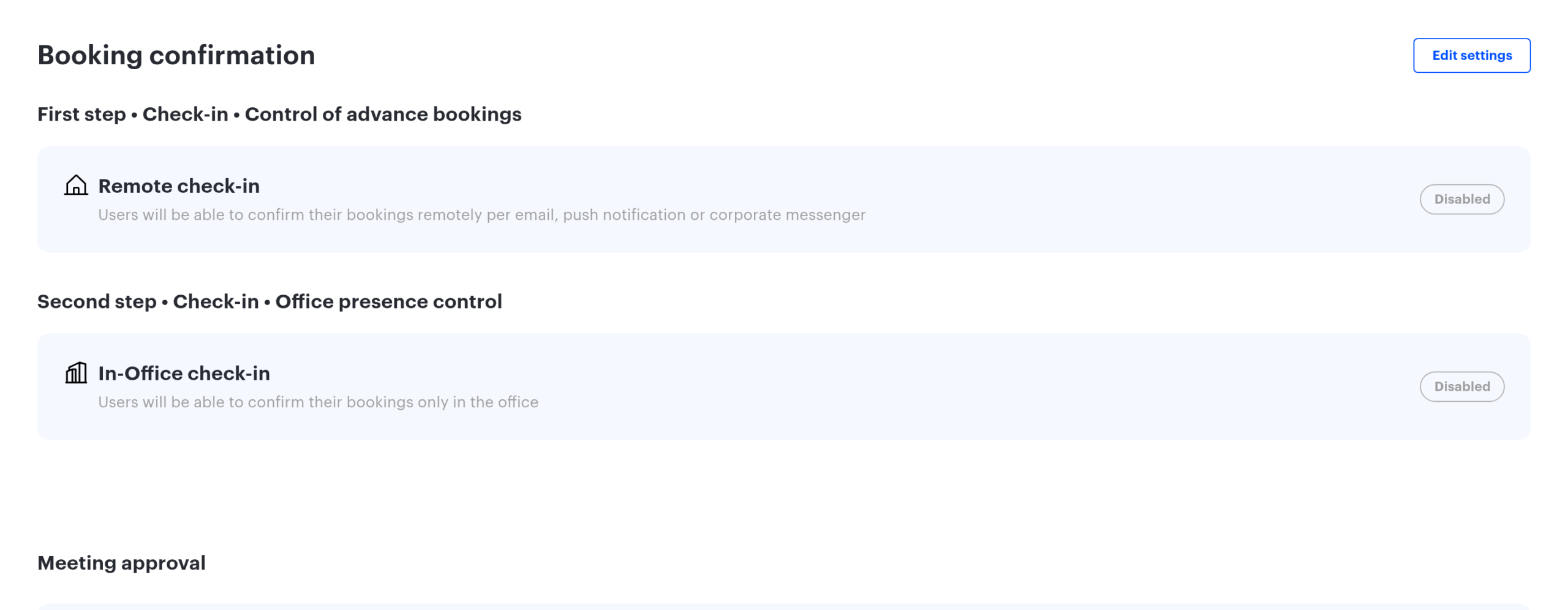
A meeting room has its own Booking confirmation block in the edit form — it appears only when editing an existing room, not while creating a new one. The set of fields there is smaller: no place types, no networks or coordinates, no PACS and no remote button; the only check-in method is QR code, and it cannot be switched off. See Meeting room check-in.
⚠️ Do not confuse this block with the one next to it. Right below it, in the same form, sits the Meeting approval block (its toggle is called Booking Approval) — approval of a booking by the person responsible for the room, which is an entirely different mechanism. The difference is explained in the meeting room article.
What the status label shows
In local blocks each stage displays its state:
| Label | What it means |
|---|---|
| Enabled | The stage works by the local settings of this space or room |
| Disabled | The stage does not work |
| Corresponds to the company settings | There are no local settings and the company rules apply; the card is greyed out and a link to the company settings page is shown next to it |
The link to the company settings is inactive for the Office manager role: they can change local settings but not company-wide ones.
Typical scenarios
| Goal | How to configure it |
|---|---|
| Uniform rules across the company | Configure the company level only and never enable local settings |
| One office is short of desks while the others have plenty | Leave the company settings off, enable “Different from company settings” for that space and define both stages |
| Different confirmation windows in different cities | Local settings per space; the company settings define the rule for everything else |
| Automatic check-in by the office network | IP and SSID lists are easier to define locally — the networks differ per office. Check that the space has coordinates |
| One problematic meeting room | Local settings for that room only, the rest of the rooms stay on the company rules |
| Different rules for parking and desks | Local settings will not help: there is one set for both. The spaces have to be split — see the dedicated article |
Limitations and pitfalls
- The local set is all or nothing. A single field cannot be overridden.
- Enabling local settings blanks the form instead of picking up the company values: it has to be filled in from scratch.
- There is no inheritance down the space tree — the rules are defined on the space where the resources actually are.
- The Office manager role configures a space, but not meeting rooms and not the company.
- Enabling the control affects existing bookings. Bookings within the next day whose confirmation window is already open at the moment of saving are confirmed automatically — but do not rely on that safety net: it works by the company-level settings and does not cover every case. The remaining bookings fall under the control on the usual terms, and a booking whose window has already passed can be cancelled within minutes of saving. Enable the control outside working hours and warn your employees in advance.
- Each level has its own exception list. A group selected in the company settings does not automatically apply to a space with local settings.
