
Set up user sync with Google Workspace
A guide for the UnSpot administrator and the Google Workspace administrator: how to connect employee synchronization from the organization directory and which fields to transfer. You connect it in Manage > Integrations > Synchronisations. The roles that may configure integrations are Super Administrator and Integrations Administrator. How the exchange works, which permissions are granted and what leaves the directory is covered in the companion article User sync with Google Workspace: how it works — that is also the one to hand to your information security team.
What you need
- An UnSpot role: Super Administrator or Integrations Administrator.
- A Google account with the right to read the organization directory — a Workspace super administrator, for example. The exchange then runs on its behalf, so disabling it stops the synchronization.
- The ability to confirm every requested permission. If Google returns an incomplete set, the connection fails — UnSpot checks that the permissions are complete.
- A free synchronization slot: only one method can be connected at a time — Google Workspace, Entra ID, AD LDAP or OpenLDAP. If another one is connected, disconnect it first.
Step 1. Connecting
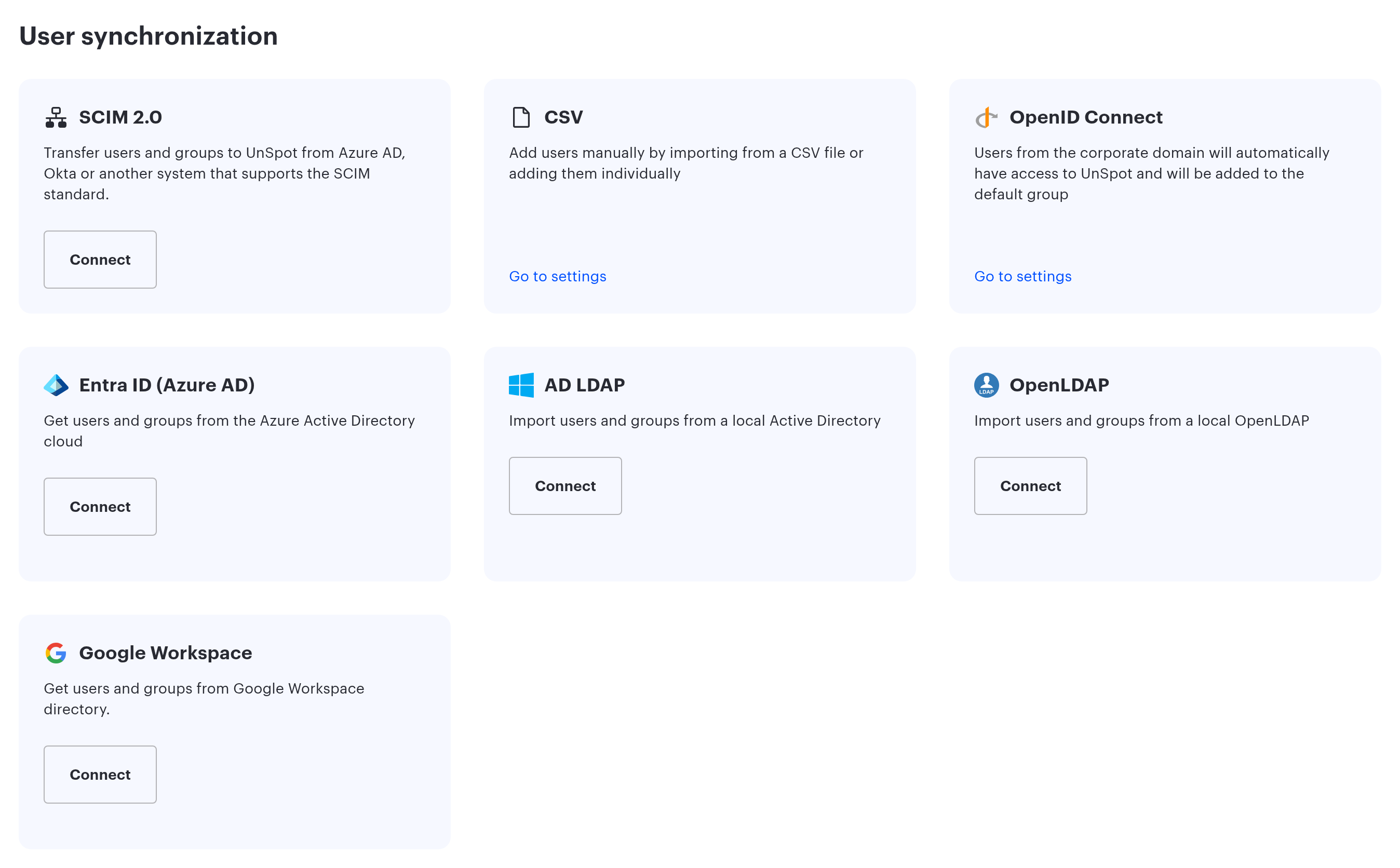
- Open Manage > Integrations > Synchronisations and click Connect on the Google Workspace card.
- In the Google window that opens, sign in with an account that can read the organization directory and confirm the requested permissions.
- The card then shows the connected account, and employee synchronization starts immediately.
Connect from the administrator’s own workstation: when the authorization starts, the session token is passed as a parameter in the address, and addresses with parameters stay in browser history.
Step 2. Synchronization data
Email, first name and last name are always transferred. The other fields are switched on with the Edit button on the card — the field set can be changed at any time.
| Checkbox | What is transferred |
|---|---|
| Department | The department from the Google record. Mutually exclusive with the organizational structure — see step 3 |
| Phone | The first number in the employee phone list |
| Position | The position from the Google record; values longer than 128 characters are truncated |
| Manager | The link is built by the manager email address, so their record has to be in UnSpot as well and must not be archived |
| User profile picture | The profile photo. Refreshed by a separate platform job — avatars will not appear immediately after you select the checkbox |
| Organizational structure | The Workspace department tree and the employee position in it. See step 3 |
Note the email address: UnSpot takes the first address in the list of the employee addresses, not necessarily the one marked primary in Workspace. If your employees have several addresses and the UnSpot login is not the one you expected, that is why.
Step 3. Organizational structure and department
Google Workspace is the only cloud synchronization integration that transfers the organizational structure into UnSpot: the Workspace department tree and where the employee sits in it. Local AD LDAP and OpenLDAP directories can do it too; a connection to Entra ID through Graph API cannot.
Department and Organizational structure are mutually exclusive. You cannot enable both: an employee department is filled from a single source. The form blocks the second option, and an attempt to save both is rejected.
If the integration was connected long ago, the organizational structure sync may not run — the token issued back then may lack the required permission, and refreshing a token does not widen the permission set. The failure is silent: the connection is not flagged as invalid, the Reconnect button never appears, and the entire user pass fails because units are read before employees. The symptom is that employees stopped updating after the Organizational structure checkbox was switched on; entries with the synchronization initiator stop appearing in the User management history report, and the underlying insufficient-permissions error is written only to the service synchronization log — the console does not show it. The fix: click Disconnect, then connect the integration again and confirm the permissions; after that click Edit and tick the fields you need again — disconnecting resets the field set to the required ones.
The head of a department is not transferred from Google Workspace — that field is filled only when synchronizing with Active Directory.
What is available after connecting
The card shows the connected account. From then on the synchronization runs automatically, once a day on the platform schedule. This integration has no manual run button.
Employees created by the synchronization receive no email from UnSpot: the password is generated randomly and told to no one. They sign in through Google SSO (when configured) or by recovering the password for their email address.
| Button | When it is available | What it does |
|---|---|---|
| Edit | while the connection is healthy | Opens the synchronization field set. Adding a field starts a resynchronization straight away; clearing a checkbox takes effect from the next cycle, and values already transferred stay on the records |
| Reconnect | only while the connection is flagged as invalid — the card then reads that the account is not valid and asks you to reconnect it or use another one | Runs the authorization again; the account is not checked for a match — take care not to finish it under a different account. The settings and the links between directory entries and UnSpot records are cleared, and objects are matched again by email address |
| Disconnect | always | Stops the synchronization and clears the settings together with the tokens. Employee records are kept. The application access on the Google side is not revoked — if that is what you need, revoke it in the Google admin console |
What this integration cannot do
- Narrow the result. This integration has no user filter: the whole organization directory is synchronized. If service or shared mailboxes exist as Workspace users, they reach UnSpot as well.
- Transfer Workspace groups. There is no groups checkbox for Google in the interface, and groups are not transferred in any mode. If you need groups in UnSpot permissions, create them in UnSpot by hand or use another synchronization method.
- Transfer the badge number. There is no NumberPass checkbox for this integration.
- Handle the archived account state. Only “suspended” is processed: a suspended employee is archived in UnSpot, an archived one is not.
If something does not work
| What you see | Why | What to do |
|---|---|---|
| The connection does not complete and the message “Invalid scopes. Please try again.” appears | Google returned an incomplete set of the requested permissions | Connect again and confirm every requested permission |
| A message that the account is not supported for synchronization and asking you to check its permissions | The account has no administrator rights on the organization directory | Connect with an account that can access the directory — a super administrator, for example |
| A message that the account is not valid | The token stopped working: the account was disabled or the application access was revoked | Click Reconnect and authorise again |
| A message that user synchronization is already connected through another directory service | Another synchronization method is already connected | Disconnect it first, then connect this one |
| A message that department and organizational structure cannot be synchronized at the same time | Both mutually exclusive settings are selected | Keep one of them — see step 3 |
| Employees stopped updating after the structure checkbox was switched on | The token lacks permission to read organizational units; the failure is silent and aborts the whole pass | Disconnect the integration and connect it again, confirming the permissions; then click Edit and tick the fields you need again — disconnecting resets the field set to the required ones |
| A new or renamed unit did not appear in UnSpot | The tree is imported once — at the moment the Organizational structure checkbox is switched on; the daily cycle does not refresh it | Switch the Organizational structure checkbox off and back on |
| Extra accounts appeared in UnSpot | There is no result filter — the whole directory is transferred | Deactivate those records in UnSpot (deleting a synchronized record is the same as deactivating it) or suspend/remove the accounts in Workspace. Archiving a record by hand will not help — the next cycle restores it |
| An employee login is not the address you expected | The first address in the list is taken, not the one marked primary | Check the employee primary address and aliases; if the wrong address became the login, remove the extra alias or contact UnSpot support |
| Avatars did not appear | Photos are refreshed by a separate platform job | Wait for the next run of that job |
Changes made by the synchronization are visible in Analytics > Reports, the User management history report: such entries carry a synchronization marker in the initiator column.
