
Office attendance mode and the attendance target
The office attendance mode is a setting in the employee profile that states how a person works: from the office, remotely, in a mixed pattern or on a flexible schedule. It drives the counter on the schedule page, the attendance control block in analytics and two dedicated reports. This article covers what the modes are, where the attendance target comes from, how to set it for many employees at once through CSV and how it is calculated.
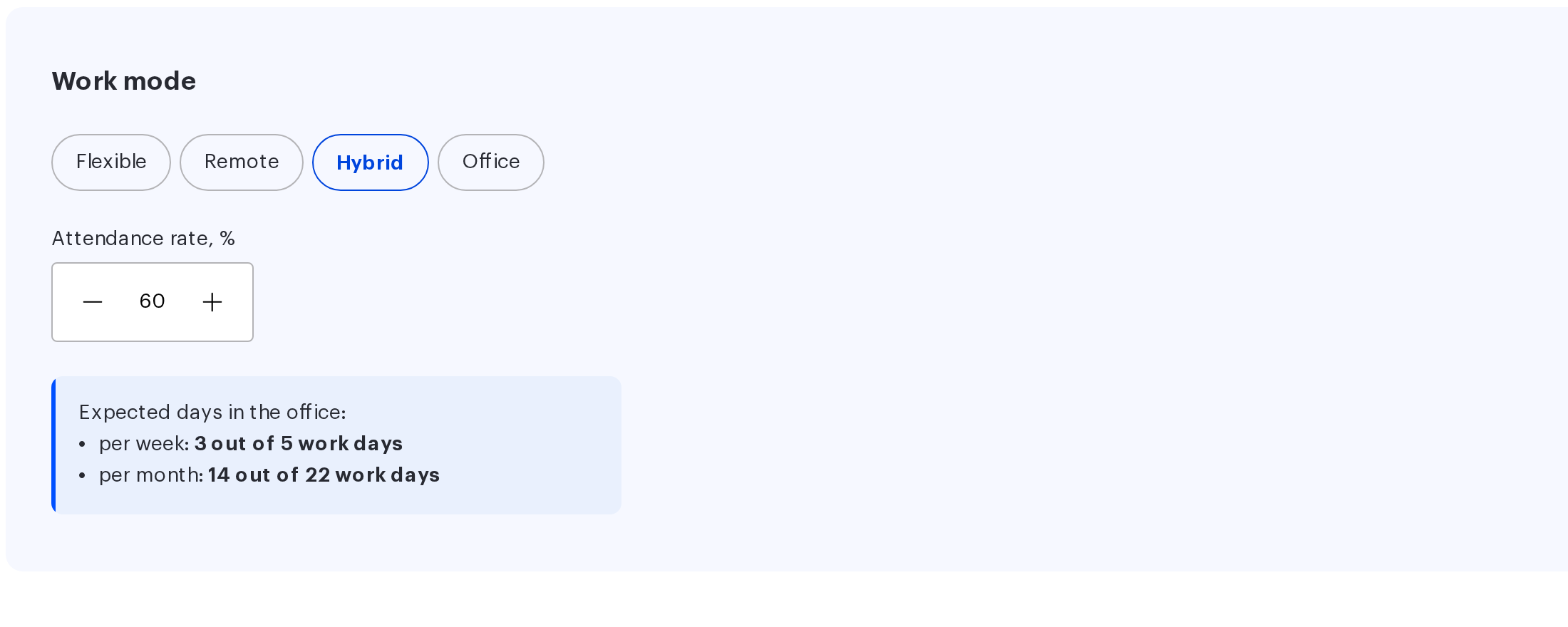
Four work modes
The work mode describes how an employee splits the week between the office and remote work. There are four modes, each with its own office attendance target.
| Mode | Attendance target | Who it is for |
|---|---|---|
| Flexible | not set | The employee decides when to come. The target is not calculated and no control is applied |
| Remote | 0 % | Works outside the office permanently |
| Hybrid | 1 to 99 % | Part of the week in the office, part outside. The share is set by the administrator |
| Office | 100 % | Works from the office every working day |
The mode is a way of reading a single number. Only the office attendance percentage is stored; the name of the mode is derived from it on every save: empty means Flexible, zero means Remote, one hundred means Office, anything in between means Hybrid. There is therefore no way to “change the mode without touching the percentage” — they are the same action.
Where it is set
The main place is the employee profile: Manage → People management → Users, the employee card, the Work mode block.
- Choose one of the four modes.
- For Hybrid, fill in the Attendance rate, % field — values from 1 to 99 are allowed.
- Below the field the conversion is shown: “Expected days in the office:” followed by “per week: …” and “per month: …”.
- Save the card.
The second place is the Work schedule window on the Work schedule page: the Work mode block there is the same one, and it is edited together with the employee’s template.
In their own profile an employee can see the work mode but not change it — nobody assigns a target to themselves.
| Role | Can change the mode and the target |
|---|---|
| Super Administrator | For any employee |
| Users Administrator | For any employee |
| Manager | For their subordinates only |
| Member | No — the field is read-only |
The hints “{n} out of 5 work days” and “{n} out of 22 work days” under the field are calculated from round numbers — five days a week and twenty-two a month. The actual target is calculated from the real calendar minus non-working days, so the number in the hint and the number in the counter on the schedule page may differ. The counter is the one to rely on.
Setting the target in bulk through CSV
The attendance target can be set for many employees at once through the user import file. The column responsible for it is Office attendance rate, % in the CSV template.
| Value in the cell | Result |
|---|---|
| A whole number from 0 to 100 | Stored as the target, the mode is recalculated automatically |
| A number with a percent sign, for example 50 % | The sign is dropped, the value is stored |
| A fractional number | Rounded to a whole number |
| A number outside 0–100 | The target is cleared, the mode becomes Flexible |
| A non-numeric value | The target is cleared, the mode becomes Flexible |
| An empty cell | The target is cleared, the mode becomes Flexible |
⚠️ The last three rows of this table are the most common way the setting is lost. An empty or unparsable cell is not skipped — it wipes the target, and such a row does not appear in the import error table: the import reports success. The only way to upload a file without touching the target is to remove the column from the file entirely.
A separate trap on the round trip: in the employee export the column is called “Work mode” but holds a number rather than the name of a mode — the very same percentage. When preparing a file for import it has to be renamed to “Office attendance rate, %”.
The full description of the file format is in “Importing users from a CSV file”.
How the target is calculated
The attendance target turns into a number of working days in three places of the product, and the formulas differ. That is not a defect — they answer different questions.
| Where | Formula | What is excluded |
|---|---|---|
| The counter on the Work schedule page | Percentage × days of the month minus non-working ones, rounded up | Weekends and holidays, days with the “Not working” status |
| By employee analytics, the attendance control block | Percentage × (working days − “Not working” days), rounded up | Weekends, holidays and “Not working” days |
| The report column “Office attendance target (baseline)” | Percentage × (office + remote + not working + unreported) | Weekends and holidays only |
| The report column “Office attendance target (actual)” | Percentage × (office + remote + unreported) | Weekends, holidays and “Not working” days |
Hence the two difference columns in the report — “Baseline difference” and “Actual difference” — the actual number of office days minus the corresponding target. A negative value means a shortfall of office days.
At 0 % and with no target set, nothing is calculated at all: the shortfall is always zero and the counter on the schedule page is not shown.
Two attendance reports
The Reports section, the Schedule group, holds two reports built entirely around the attendance target.
| Report | How it differs |
|---|---|
| Attendance Report | Each day cell holds the employee’s status |
| Attendance Report (detailed) | Each day cell holds the short name of the office or the short title of a sub-status. One extra column is added per sub-status |
Both share the same shape: one row per employee, one column per day of the period, then the summary columns.
- “Number of Office Days”, “Number of Remote Days”, “Number of Unreported Days”, “Number of Weekends and Holidays”;
- “Office attendance target (%)” — the percentage from the employee profile;
- “Office attendance target (baseline)” and “Office attendance target (actual)”;
- “Baseline difference” and “Actual difference”.
Limits that apply to both reports:
- the period cannot exceed three months — a longer request is rejected;
- a manager gets the report for their subordinates and themselves, an administrator for everyone;
- the export is a CSV file built in the browser;
- if the period reaches into the future, a warning that bookings may still change is added to the file.
A detailed description of the columns and filters is in “Reports”.
What else the work mode affects
| Where | What depends on the mode and the target |
|---|---|
| The Work schedule page | The “booked / target” counter and the hint about how many days are left to plan |
| The employee card seen by colleagues | The “Work mode” line — visible to any employee |
| A team member row | A chip with the name of the mode next to the working hours |
| By employee analytics | The “Attendance Rate Control” block and the insufficient office days segment |
| Reports | The two attendance reports described above |
| Synchronisation | The target is carried by the CSV import and by SCIM; in SCIM the name of the mode is read-only |
The work mode has no effect on access to desks, on booking limits or on the booking horizon — it is purely a planning indicator.
Limits and common misconceptions
| Misconception | How it actually works |
|---|---|
| The work mode is a setting of its own | It is a label for the attendance percentage; it is not stored separately |
| An employee can choose their own mode | No, the field is read-only in the profile |
| Flexible and Remote are the same thing | For calculations almost the same: the target is zero in both cases. They differ as labels in the profile and in reports |
| The target forbids coming to the office more often | No, it is a planning benchmark, not a restriction |
| An empty cell in a CSV file leaves the target unchanged | It changes it: the target is wiped and the employee becomes Flexible |
| The numbers in the profile hint and in the schedule counter must match | They need not: the hint counts by 5 and 22 days, the counter by the real calendar |
