
Connect an Exchange calendar to a meeting room
A resource calendar of a Microsoft Exchange server deployed in your own infrastructure can be linked to a meeting room directly, over the EWS protocol. In the interface this option is called On-premise Microsoft. Once the calendar is connected, meetings from it become meeting room bookings in UnSpot, and bookings made in UnSpot become events in the calendar.
When this option fits
For Exchange UnSpot offers two ways to connect meeting room calendars, and the choice has to be made before you start.
| Option | When it fits | What it requires |
|---|---|---|
| On-premise Microsoft — this article | There are few meeting rooms; you need to connect them one by one, without a shared setup | An account with rights to the specific resource calendar; the parameters are entered again for every meeting room |
| Service account with impersonation | There are many meeting rooms; you need one centralised setup for the whole company | An Exchange service account with the ApplicationImpersonation role |
The second option is described in Connect Microsoft Exchange via a service account — it needs no delegated rights on every calendar.
What you will need
- The Super Administrator or Offices Administrator role in UnSpot — connecting a calendar to a meeting room is available to them only.
- An office structure configured in UnSpot: the meeting room must exist in the workspace tree. The calendar is connected to the meeting room itself — an office or a floor cannot take one.
- The address of the Exchange server, reachable from UnSpot, and its version.
- The address of the meeting room resource mailbox.
- The credentials of an account that has rights to that mailbox. How to grant them — Prepare Exchange calendar to work with UnSpot.
Step 1. Open the meeting room calendar setup
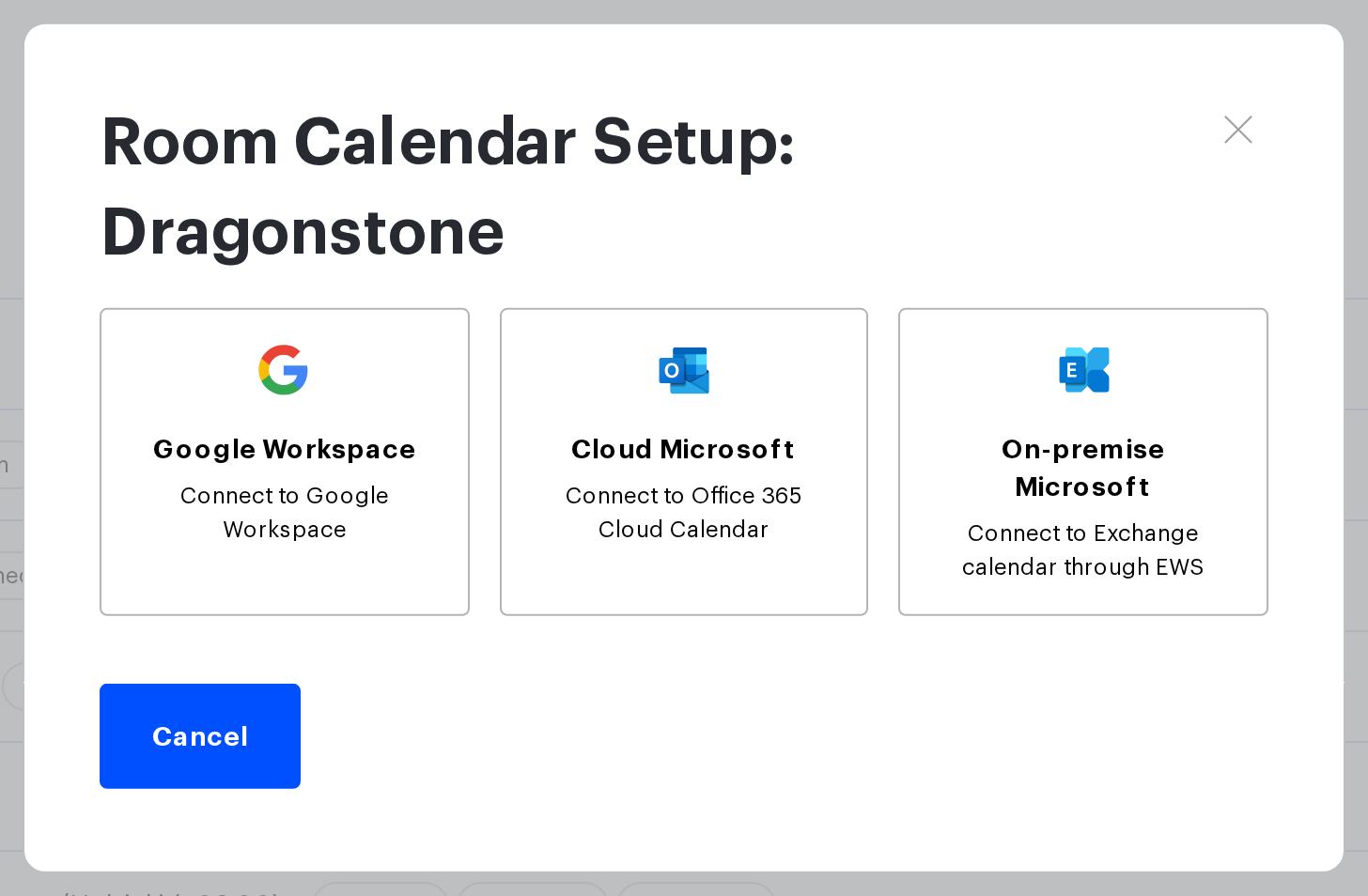
In the admin panel go to Manage → Office management → Workspaces. Find the meeting room you need in the tree, hover over its row and click Connect calendar. In the window that opens choose On-premise Microsoft — the caption under the button reads Connect to Exchange calendar through EWS.
Step 2. Fill in the connection parameters
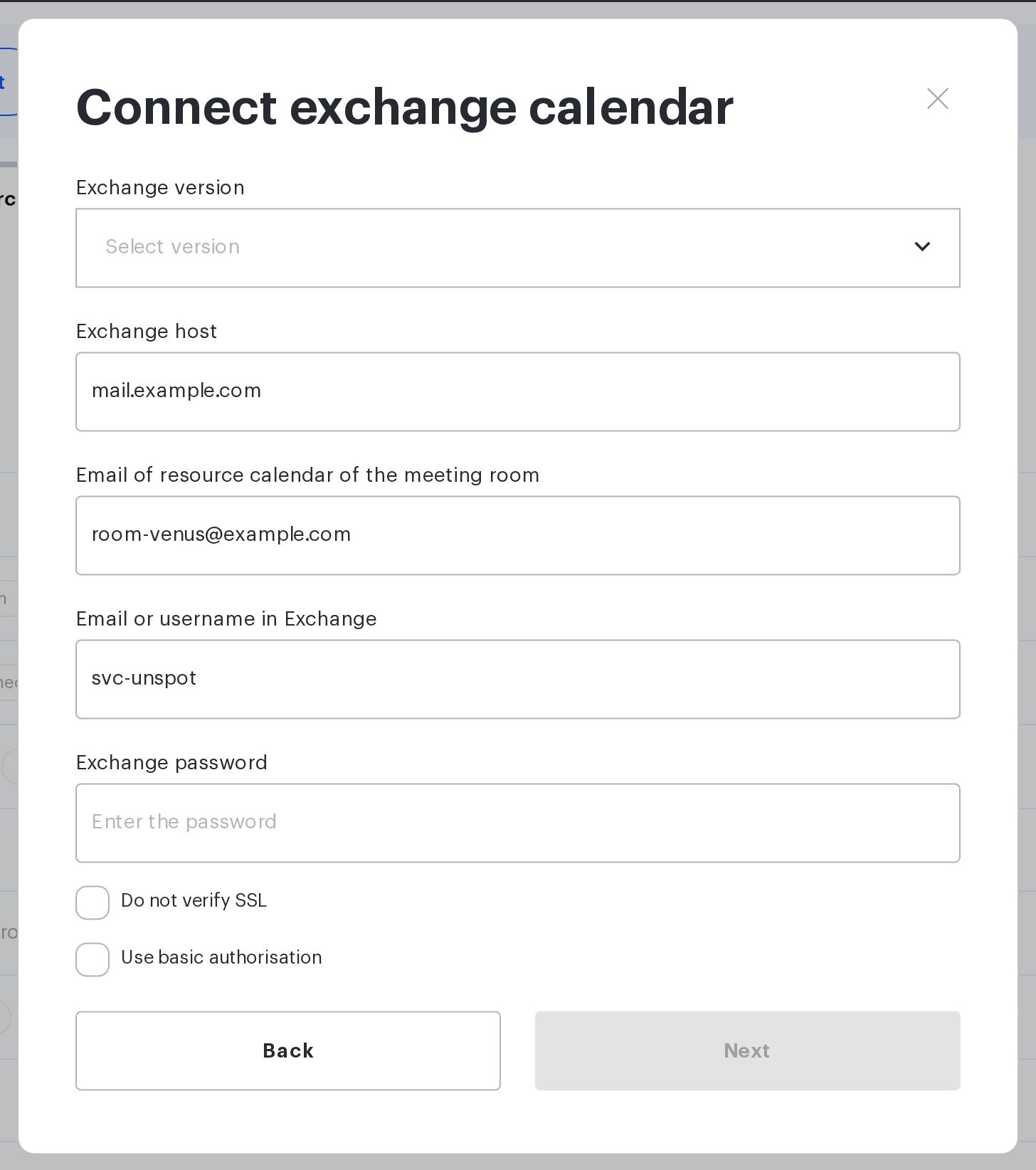
The Connect exchange calendar form opens. Fill in the fields and click Next.
| Field | What to enter |
|---|---|
| Exchange version | The version of your server. Available values: • Exchange Server 2010 • Exchange Server 2010 SP1 • Exchange Server 2010 SP2 • Exchange Server 2013 • Exchange Server 2013 SP1 • Exchange Server 2016 |
| Exchange host | The domain name of the server only, with no protocol and no path — for example mail.example.com |
| Email of resource calendar of the meeting room | The address of the meeting room mailbox, for example room-venus@example.com |
| Email or username in Exchange | The account that has rights to that mailbox |
| Exchange password | The password of that account. UnSpot stores it encrypted |
| Do not verify SSL | Turn on only if the server uses a self-signed certificate |
| Use basic authorisation | Turn on if the server does not accept NTLM |
If the host field is highlighted with the Enter valid host error, the value contains more than a domain name — remove https:// and everything that follows the domain name.
Step 3. Choose a calendar and connect it
The calendar list step opens — it is headed Calendars and marked Step 2 in the footer. Select the meeting room resource calendar and click Connect. If the calendar you need is missing from the list, follow the How to grant permission to access the calendar? link under the list.
Exchange does not pass the calendar name. If you see a calendar named Calendar in the list, that is the calendar of the mailbox you specified in the connection parameters.
How to check that the calendar is connected
After a successful connection the meeting room in the workspace tree gets the Exchange icon.
The calendar setup window offers the Start Sync button (a one-off forced reconciliation of events, no more than once an hour — the Available at caption next to the button shows the time of the next attempt) and Reconnect. Only a Super Administrator can start the synchronisation manually.
Disconnecting the calendar
Hover over the meeting room, click Connect calendar and then Disconnect in the window that opens. Confirm the action in the Are you sure that you want to disconnect calendar from space? prompt. Bookings already created in UnSpot and events already in the calendar stay where they are — they simply stop being synchronised.
Limitations
- One calendar — one meeting room. A calendar that is already connected to another space or to a user profile cannot be selected.
- A calendar cannot be connected to an office or a floor — only to the meeting room itself.
- The calendar of an external meeting room cannot be disconnected — the Disconnect button is not available for it.
- The server parameters are entered again for every meeting room. If there are many of them, consider connecting through a service account instead.
Connection errors
| Message | What happened | What to do |
|---|---|---|
| Enter valid host | The host field holds something other than a domain name | Leave the domain name only, with no protocol and no path |
| Enter valid resource email | The resource mailbox address is mistyped | Check the address of the meeting room mailbox |
| You need to select the Exchange version | The version field is empty | Pick the server version from the list |
| Invalid credentials. | The username or the password is wrong | Check the credentials; if the password was changed recently, enter the new one |
| Insufficient permissions for service account or application. | The account has no rights to the resource mailbox | Grant rights to the meeting room mailbox |
| The calendar {calendar} is already connected to another resource. | This calendar is already linked to another space | Pick a different calendar, or disconnect it from the previous resource |
| This space has connected calendar “{calendar}”. Please disconnect it first. | The meeting room already has a calendar | Disconnect the current calendar and connect the new one |
