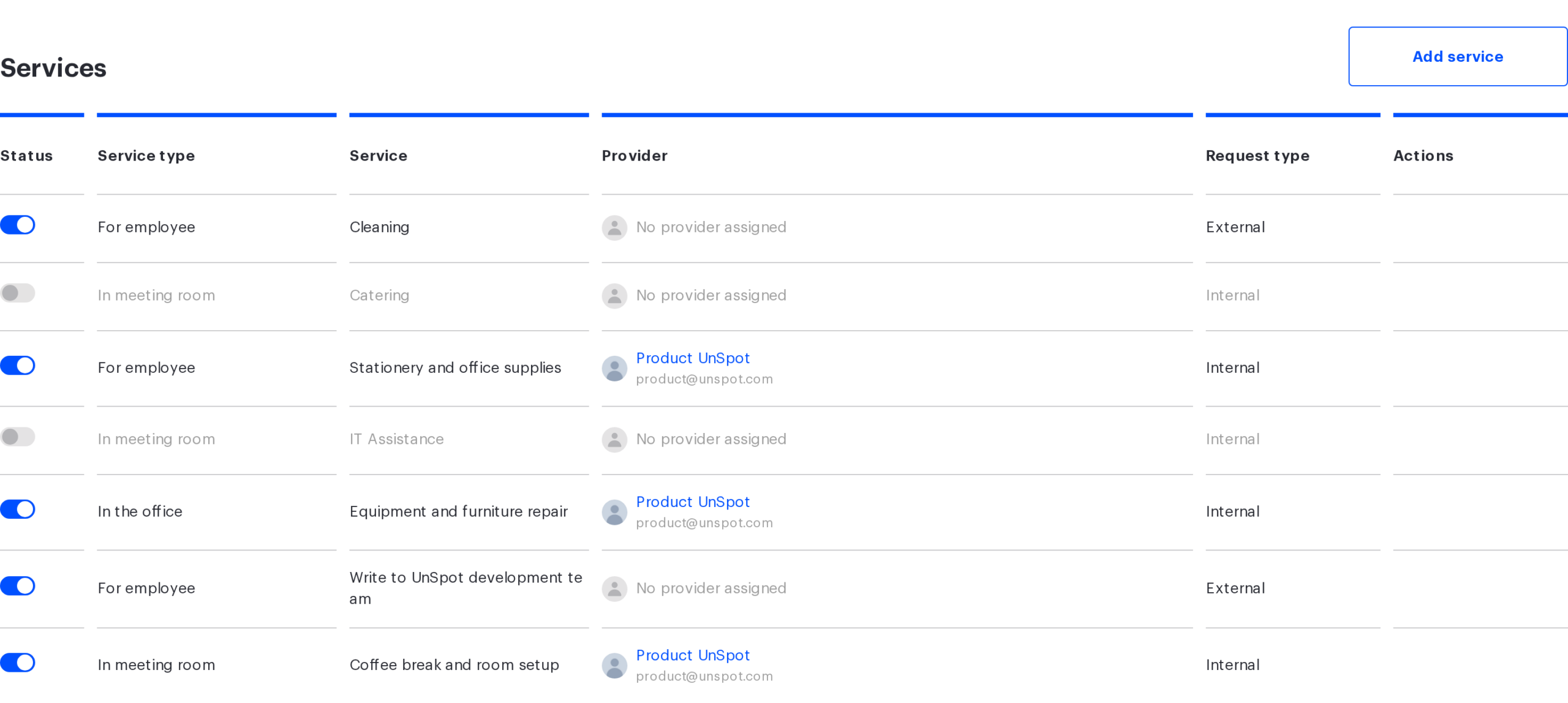
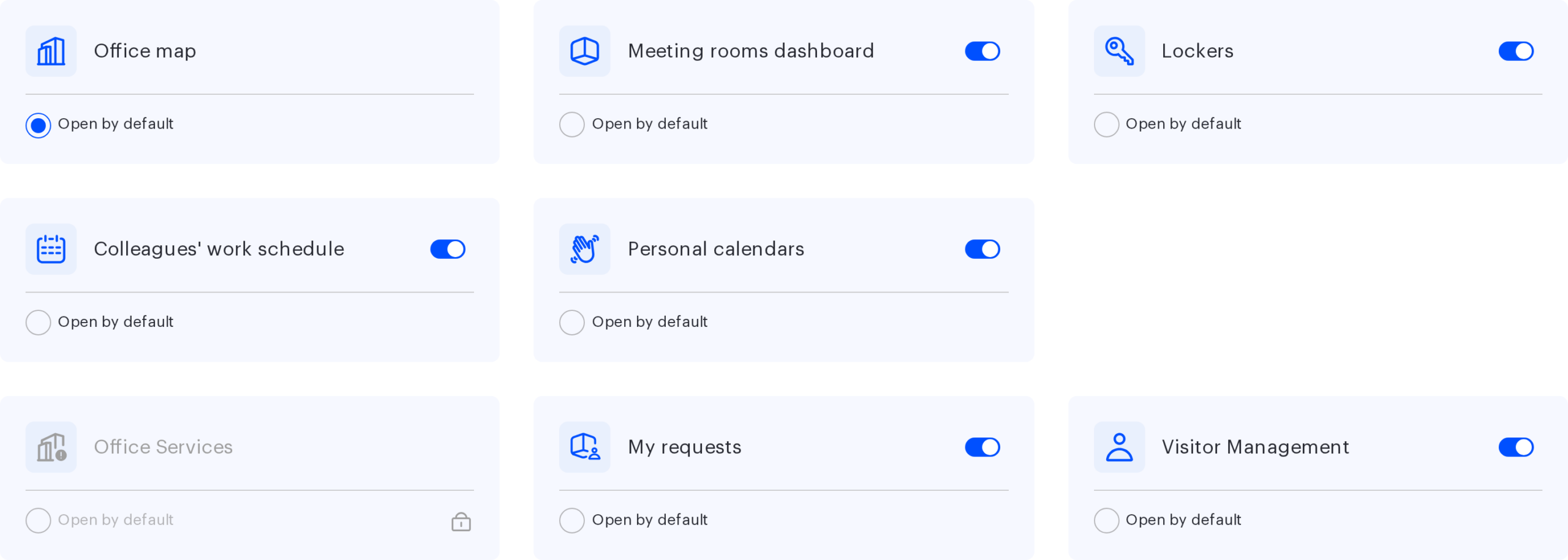
Service requests are the way to hand a task over inside UnSpot: order stationery, report faulty equipment, have a meeting room prepared. An administrator configures the services, employees submit requests for them, providers process those requests. This article is the entry point to the section: it helps you pick the right service type and suggests the order in which to set everything up.
What you need: the Super Administrator or Offices Administrator role to configure things; the “My requests” module enabled (Manage → Company settings → the “Available functionality” block); at least one employee to assign as a provider.
The service type is chosen once, at creation, and never changes afterwards. It decides where the employee submits the request from and what they state in it. This is the main fork of the section — start here.
Service type
When it fits
Limitations
Article
“For employee”
The task is not tied to a place: stationery, access, IT help
No request object and no service mode. The request is submitted from an account only
Separately from the type you choose where to process the requests — inside UnSpot or in an external ticket system. That choice is also made once and is available for all three types.
Processing method
When it fits
Limitations
Article
“Inside UnSpot”
Your own employees handle the requests right in UnSpot
A provider is required, and there is exactly one per service
You already have a service desk and do not want to create accounts in it for your employees
The handover is one-way: the request gets the final status “Sent” straight away, and the answer from the external system does not come back into UnSpot
Manage → Company settings → the “Available functionality” block → the “My requests” card
Create and configure services
Manage → Office management → the “Services” tab
Export QR codes
Manage → Office management → the “Resources report” tab
Process requests
The “Requests” section → the “Service requests” tab
Rollout order
Enable the “My requests” module — without it there is no “Services” tab at all.
Decide which tasks you are covering and map them to the service types using the table above.
Decide for each service where the requests will be processed: inside UnSpot or in an external system. This cannot be changed later — only by deleting the service and creating it again.
Assign the providers. For processing inside UnSpot a provider is required, and until one is assigned the service does not work.
The service type and the processing method can be changed later
They cannot. In the edit form both chip groups are read-only. Only the service mode can be changed — and only for the “In the office” type
The “Office Services” card is a separate module, and requests will work without “My requests”
They will not. That card has no switch of its own, and the “Services” tab as a whole is gated by the “My requests” module flag: turning it off costs you the setup of all three types at once
The Super Administrator role allows seeing all requests of the company
It does not. The full list is opened not by a role but by a setting in the employee card: the “Subordinates” block, the value “All users”
A public service is visible only in the office where the QR code is stuck
It is not. A service is not tied to an office at all: the public page shows every public service of the company
A request can be brought back from a final status
It cannot. “Completed”, “Cancelled” and “Sent” are not reversible — only a new request
The “Sent” status means the external system has received the request
It means UnSpot has sent the email. UnSpot receives no delivery confirmation
If something does not work
Symptom
Where to look
There is no “Services” tab in office management
The “My requests” module is off
The “Create a request” list has no “Submit an employee request” item
There is no active service of the “For employee” type with a provider or external processing — see “For employee” requests: setup
The request form opens, but the service list is empty
Services exist but are switched off, or their provider is blocked
The request list is empty although requests were created